Build a workflow
Workflows are a Pro page for a sequence you run again. First enable Settings → Experimental → Workflows; it is off by default. A block runs code, a code file, a saved HTTP endpoint, an MCP tool, or an OpenAI-compatible model. A decision picks one branch. A loop repeats a frame. The same file is the page and the YAML.
This is separate from a collection runbook, a Markdown runbook, and a repo runbook. Those stay as they are.
Open it
| How | What happens |
|---|---|
| Cmd+Shift+G (Ctrl+Shift+G on Windows and Linux) | Opens the page. Press it again to close. A dirty draft asks first |
| Jump list, Workflows, after Collections | Same page. Ctrl+J opens the list |
@flow | Lists workflows. @flow Refresh Acme users opens that one |
The page covers the header, the terminal, and the footer. Back returns to the terminal. Learn in the page header opens Termorq Learn in your browser, with step-by-step lessons such as a tour of this page. A run keeps going after you leave. The footer then shows 1 workflow running. That chip opens the page again.
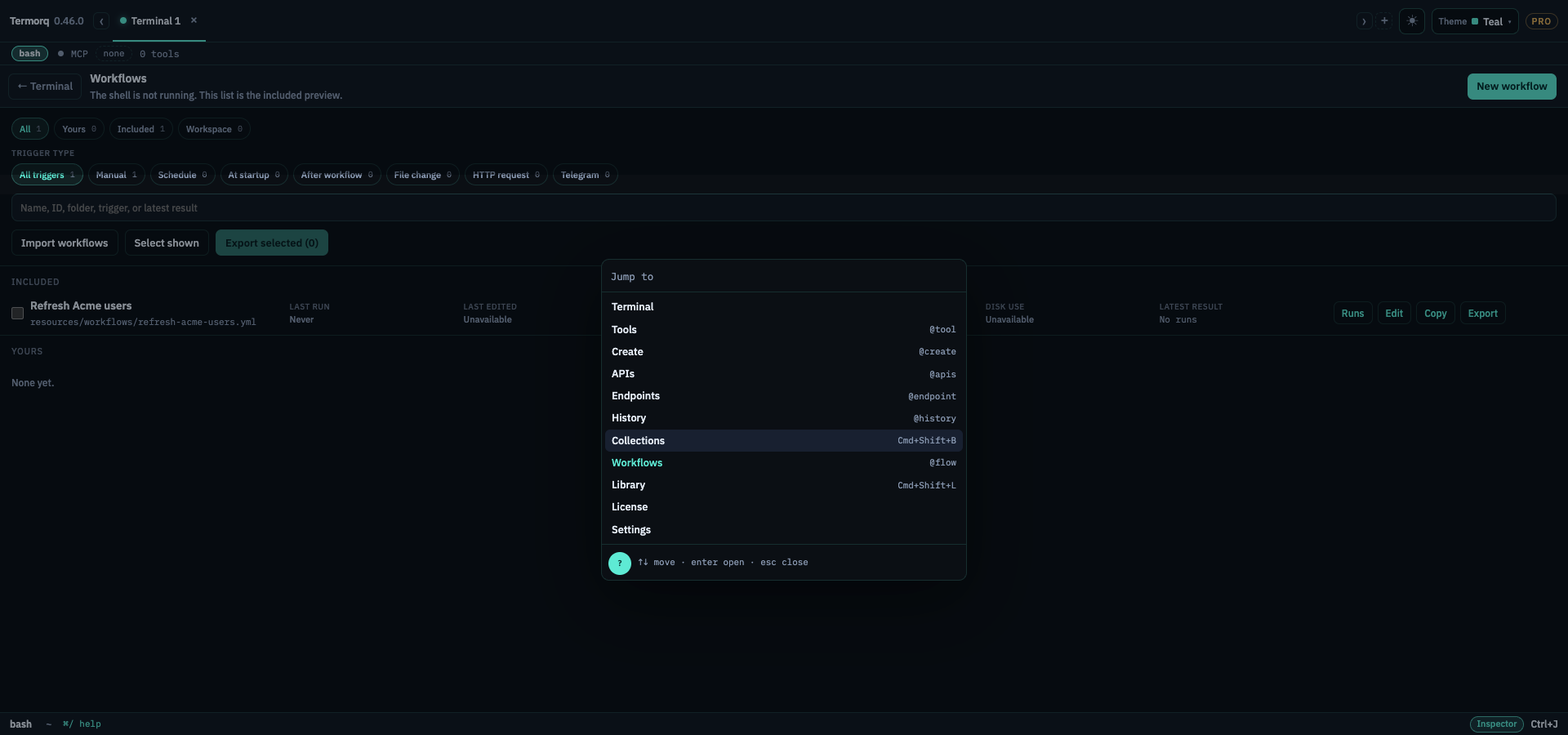

Filter by source with the All, Yours, Included, and Workspace chips, then use the trigger-type pills to narrow the list to Manual, Schedule, At startup, After workflow, File change, HTTP request, or Telegram. The search also matches workflow names, IDs, folders, trigger types, and latest results. Each row shows the selected trigger type, even when other trigger settings are saved for later. When a workflow has a description, use its expand control to read it under the row. At desktop width, each workflow, its trigger, last edited and run times, run count, disk use, latest result, and actions fit on one row. Disk use totals the workflow definition and its saved run files. Copy creates a separately named workflow with a unique ID and no run history; its triggers start paused. Delete appears when you hover or focus a row and asks for confirmation before removing the workflow file and its saved run folders, including run files and logs. Runs opens its run history; Edit opens the workflow. Included workflows are read-only and cannot be deleted, but you can copy them.
In the workflow editor, Settings sits beside Editor. Set the workflow name, working folder, block timeout, and an optional description there. Names are checked without regard to capitalization or surrounding spaces; another workflow with the same name prevents saving. The editor allows the workflow’s existing name while you edit it. A description is saved with the workflow and can be expanded from its row in the workflow list. Descriptions render Markdown, including lists, links, and fenced code; raw HTML and embedded images are not rendered.
Settings → Workflows shows where run data is stored: workflows/runs/<workflow id>/<run id>/. Each folder holds the run record, block logs, files created by the run, and build artifacts. Code starts in that run’s files/ directory; the workflow’s project folder is unchanged.
When the experimental flag is off, the page’s entry points and workflow settings are hidden. A workflow already open stays open until you leave it. Free builds do not offer the flag or the workflow page.
flowchart TD
  open["Open with Cmd+Shift+G"]:::step
  draft{"Unsaved draft?"}:::gate
  stay["Stay"]:::out
  save["Save, then leave"]:::store
  term["Terminal"]:::success
  open --> draft
  draft -->|Esc or Stay| stay
  draft -->|Save| save
  draft -->|Discard| term
  save --> term
  stay --> open
classDef store fill:#134e4a,stroke:#5eead4,stroke-width:2px,color:#f4fbfa
classDef gate fill:#FFC131,stroke:#b45309,stroke-width:2px,color:#1a1404
classDef step fill:#0f766e,stroke:#99f6e4,stroke-width:2px,color:#f4fbfa
classDef out fill:#155e75,stroke:#67e8f9,stroke-width:2px,color:#f4fbfa
classDef exit fill:#9f1239,stroke:#fecdd3,stroke-width:2px,color:#fff1f2
classDef success fill:#166534,stroke:#86efac,stroke-width:2px,color:#f0fdf4
linkStyle 0,1,2,3,4 stroke:#5eead4,stroke-width:2.5px
In 60 seconds
Open Workflows. New workflow. Add a code block, language bash, body echo '{"ok":true}'. On Schema, add a property ok of type boolean. Save, then Run. The card shows Running, then Done, and the inspector shows the line. The terminal under the page was never blocked. That is the point: one file, one run folder, and the prompt still works. Each code block is its own process. A variable set in one block is not set in the next.
The canvas
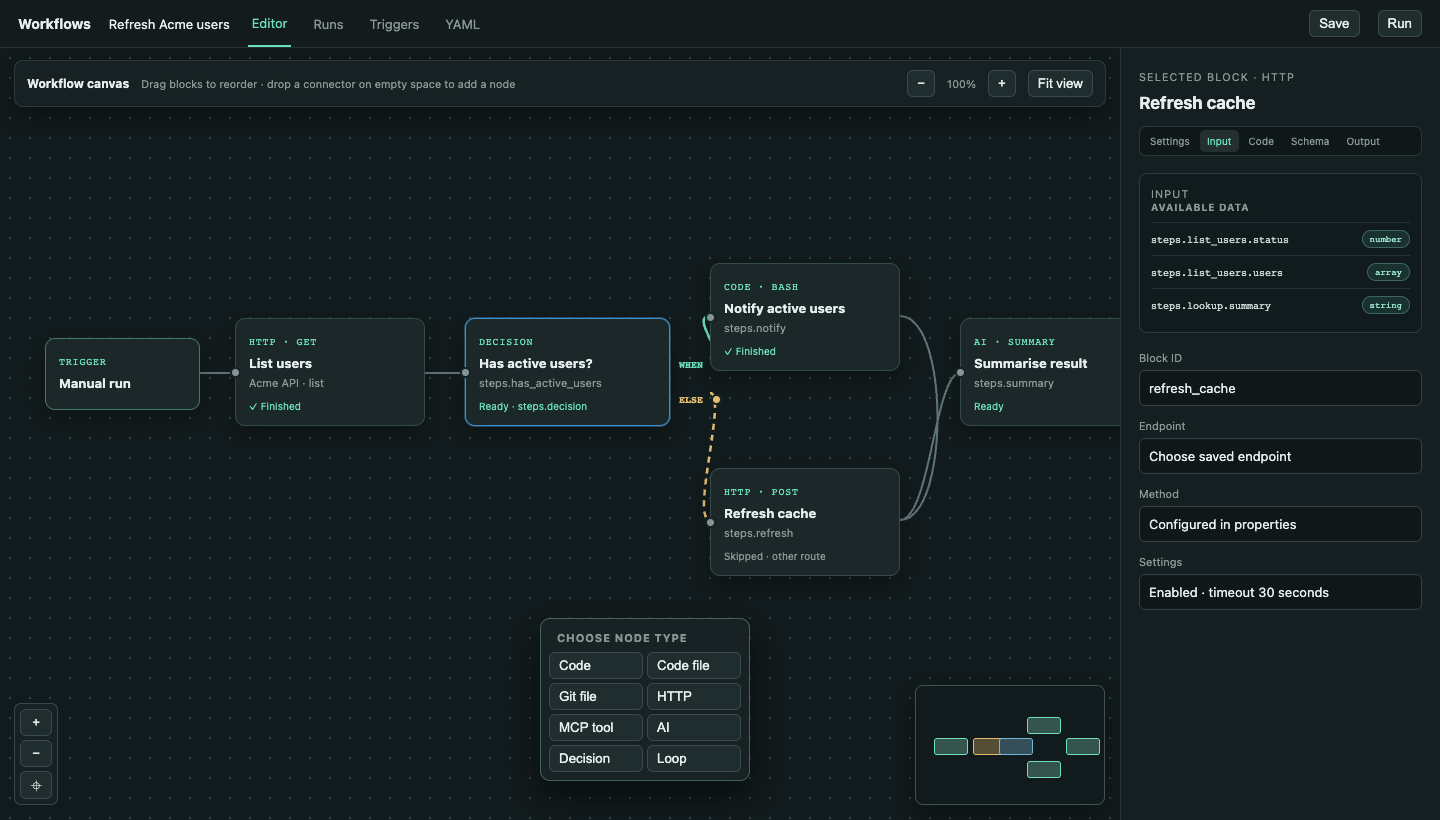
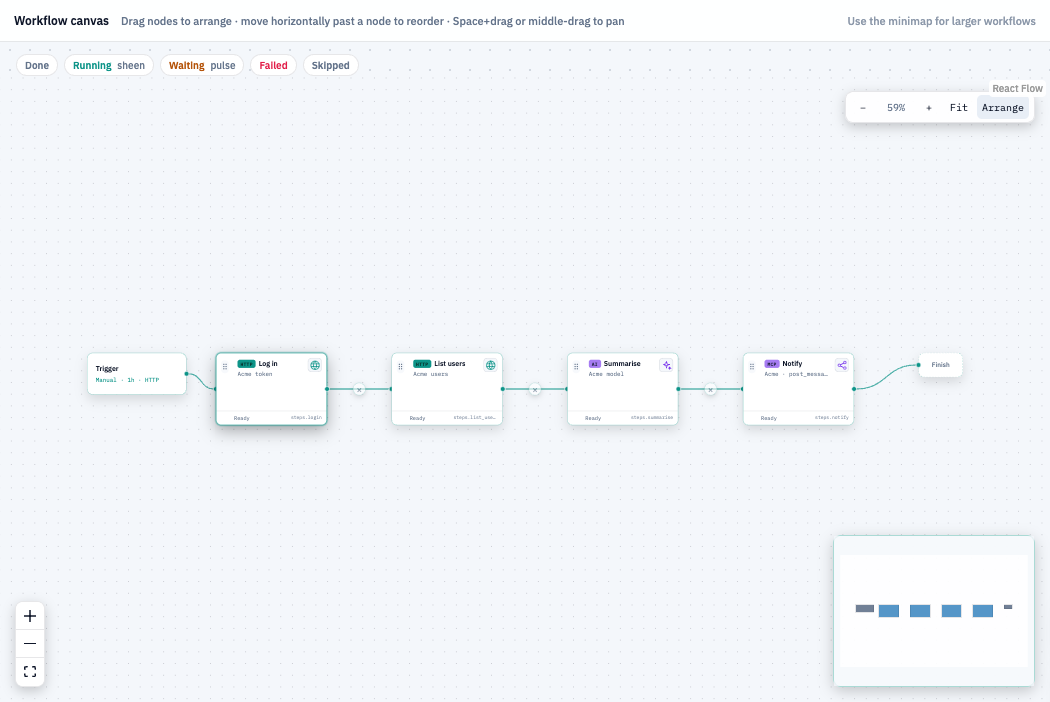
The React Flow canvas lays every top-level block out from left to right in file order, including blocks referenced by decision routes. Drag a block to move it freely; its canvas position is saved in the workflow YAML when you save. Choose Arrange in the canvas controls to lay out the main flow from left to right and place each decision’s destination nodes in a shared vertical column centered midway between the decision and following node, with the branch column vertically balanced around the decision and When routes above Else; save the workflow to keep the new positions. Move a block horizontally past another node to reorder it in the workflow, or drag it into a loop frame to make it part of that loop body. Hold Space and drag the background, or use the middle mouse button, to pan without accidentally moving blocks. Use the mouse wheel or trackpad to zoom, choose Fit to bring the whole workflow into view, or pan and zoom from the minimap. Resizing the canvas fits the workflow back into view. Older workflows without saved positions use a readable left-to-right layout in block order, with decision targets offset into separate rows. Select a block to open its properties in the inspector on the right. Each node shows a graphic at its top-right: code nodes show the selected language logo (for example, C#), and AI nodes use a provider-neutral sparkle mark. The Node execution switch enables or disables the selected block; disabled nodes remain visible and appear as Skipped in runs without executing. Decisions use a dedicated React Flow node with labeled When and Else output handles. Drag an output handle onto a block to set its target, or onto empty canvas to open Choose node type and add a block on that route. Drag an ordinary block’s output connector onto empty canvas to add a block to the main flow; this replaces the between-node + button. Press Esc or × to dismiss the picker and cancel the pending connector without changing the workflow. Decision conditions and target selectors remain in the right Properties inspector. Use the small × on a connected wire to disconnect it. A disconnected destination with no other explicit incoming route is disabled and remains visible; it is skipped during runs, including when YAML order would otherwise reach it. A disconnected decision route falls through to the next block in YAML order. Drag between ordinary block handles to set a then target. If a route already has a target, choosing a new node inserts it before that target. The plus menu and connector-drop picker show node types in a compact two-column grid. Choose a code language, saved HTTP endpoint, MCP server and tool, AI model, or other kind-specific setting in Properties on the right. Remove appears on hover or keyboard focus.
The right Properties inspector has Settings, Input, Code, Schema, and Output tabs in that order. In Settings, the Name label sits above its full-width field, with space before the separate Node execution controls. Code uses the same stacked labels and spacing between fields, including Language and Snippet. Open Input to see the selected block’s Available data. It uses the same upstream paths offered by the code editor, with a datatype pill beside each path. Declared output schemas provide the type; the implicit HTTP status, loop.index, and loop.count are numbers. loop.item shows unknown because its type depends on the selected array. Paths without a declared output type also show unknown. This tab is read-only and mirrors the code editor’s available paths.
If a block fails, it stays highlighted in red. The editor selects it, moves the canvas to its node, and opens its error in the Output panel. For a code block inside a loop or a decision target, the canvas focuses the node that contains that block.
+ between blocks inserts one. The same control is inside each loop frame. The node-type menu lists Code, Code file, Git file, HTTP endpoint, MCP tool, AI, Decision, and Loop. × or Esc closes the menu without changing the workflow. After adding a node, its type-specific controls appear in Properties on the right inspector. Code starts with Bash; choose Bash, PowerShell, Python, C#, Rust, JavaScript, or TypeScript and edit the snippet there. The snippet editor colours syntax for the selected language, shows line numbers, and can be resized from its lower edge; Tab inserts two spaces. The examples below the snippet offer insertable code examples for each language, including reading an earlier value from TERMORQ_INPUT, publishing a JSON property, and returning ok with a property as one compact JSON line. Resize the examples area independently with its lower handle. Add the input path under uses and declare output properties in the schema. Insert adds an example at the cursor. Drag the divider between the inspector and canvas to resize the inspector. For HTTP endpoint, choose a saved endpoint in Properties on the right to copy its path parameters, query string, headers, and payload onto the block. For MCP tool, choose a saved server, connect it, then choose the tool; its parameters are copied onto the block. When the workflow runs, it connects the saved server automatically if needed, then calls the selected tool. For AI, choose a saved model in Properties on the right; the system text and prompt start with values already in reach. Its default summary output can feed the next block. Git file is an editor-only entry for a public repository file; the backend does not currently run it. Use Code file with a reviewed local checkout instead. Each card shows steps.<id> near its lower edge. The new block does not run until you press Run.
For a code block, Open code editor opens a dedicated step view with upstream data on the left, code parameters in the centre, and output on the right. Enter JSON or plain text under Step input, then choose Execute step to run only that code block and see its standard output, errors, and published properties. Copy output in the output panel copies the displayed result, errors, and output data. The sample is stored as input_sample in the code block’s YAML; save the workflow to keep it after reopening the editor. TERMORQ_INPUT points to a temporary file containing the supplied JSON or raw plain text. Plain text is also exposed in the execution scope as inputs.text and trigger.text; code must read the file as text rather than parse it as JSON. This test runs with the supplied JSON directly. In a real workflow run, TERMORQ_INPUT contains the values declared in the block’s uses list, nested under those paths. For example, uses: [trigger.text] gives code input["trigger"]["text"]. This test run does not start workflow triggers or add an entry to Runs. Settings edits the node name, controls node execution, and shows its published properties. Parameters edits the language and snippet. Back to canvas returns to the flow. Run workflow in the workflow toolbar still starts the workflow from its first step.
Autogenerate code from an earlier node
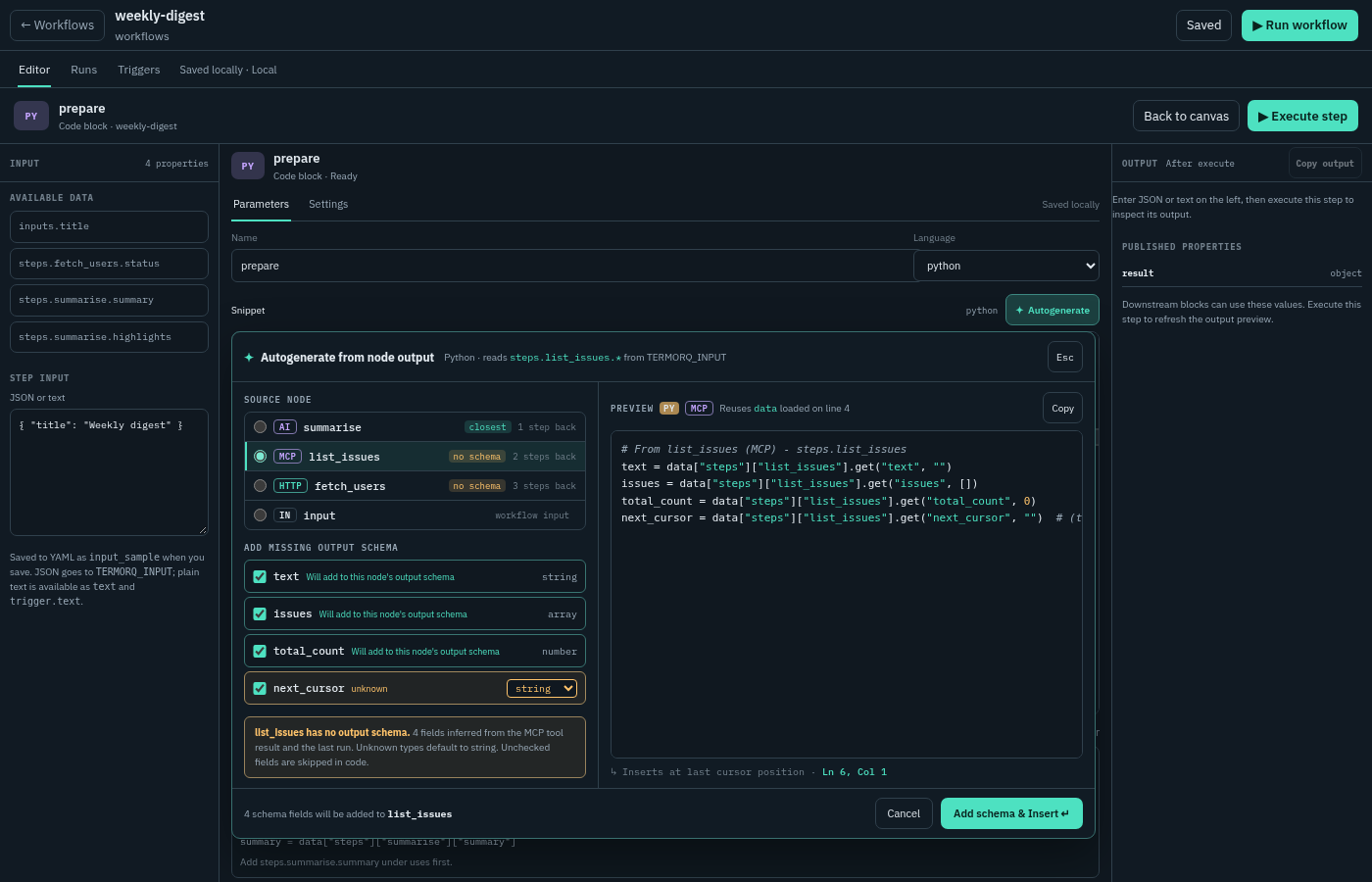
✦ Autogenerate on the Snippet row writes code that reads another node’s output, so you do not have to type TERMORQ_INPUT paths by hand.
- Click where the code should go, then choose ✦ Autogenerate. The panel remembers that caret. If you never clicked in the editor, the code is appended to the end.
- Pick the Source node. The node wired into this one is selected first; otherwise the closest earlier node is. The list shows how many steps back each node is, and input when the workflow declares inputs.
- Review the fields. What you see depends on the node:
- AI and nodes with a complete schema list their declared outputs and say Schema complete — nothing to add.
- HTTP endpoint always has
status(a number).bodyand any top-level JSON keys from the last run are marked Will add to this node’s output schema. - MCP tool and code nodes without a schema get an inferred checklist, checked by default:
text, the tool-result fields, or the keys seen in the last run. A field whose type cannot be inferred is amber with a type picker; it defaults to string. Unchecked fields are left out of the code and the schema.
- Check the Preview. It is written for the block’s language. When the code above the caret already opens
TERMORQ_INPUT(for exampledata = json.load(stream)in Python), the preview reuses that variable and says which line loads it. Bash reads each value withjq. - Choose Insert, or Add schema & Insert when fields will be written to the source node. Nothing changes until you confirm; Cancel or Esc closes the panel.
Insert puts the code on its own lines at the caret, tints those lines teal with an Inserted at cursor (or Appended) badge, and leaves the caret after them. It adds each path, such as steps.fetch_users.status, to this block’s uses, and adds any new fields to the source node’s output schema, so Available data and the save checker accept them. A notice with Undo appears; Undo restores the snippet, uses, and the source node’s schema together. The tint clears after 10 seconds or on your next edit, and the notice stays for 10 seconds. Change either, from 1 to 60 seconds, in Settings → Workflows → Code editor.
For example, this code block opens with a JSON sample in Step input:
  - id: echo
    kind: code
    input_sample: |-
      {"text":"Hello from curl"}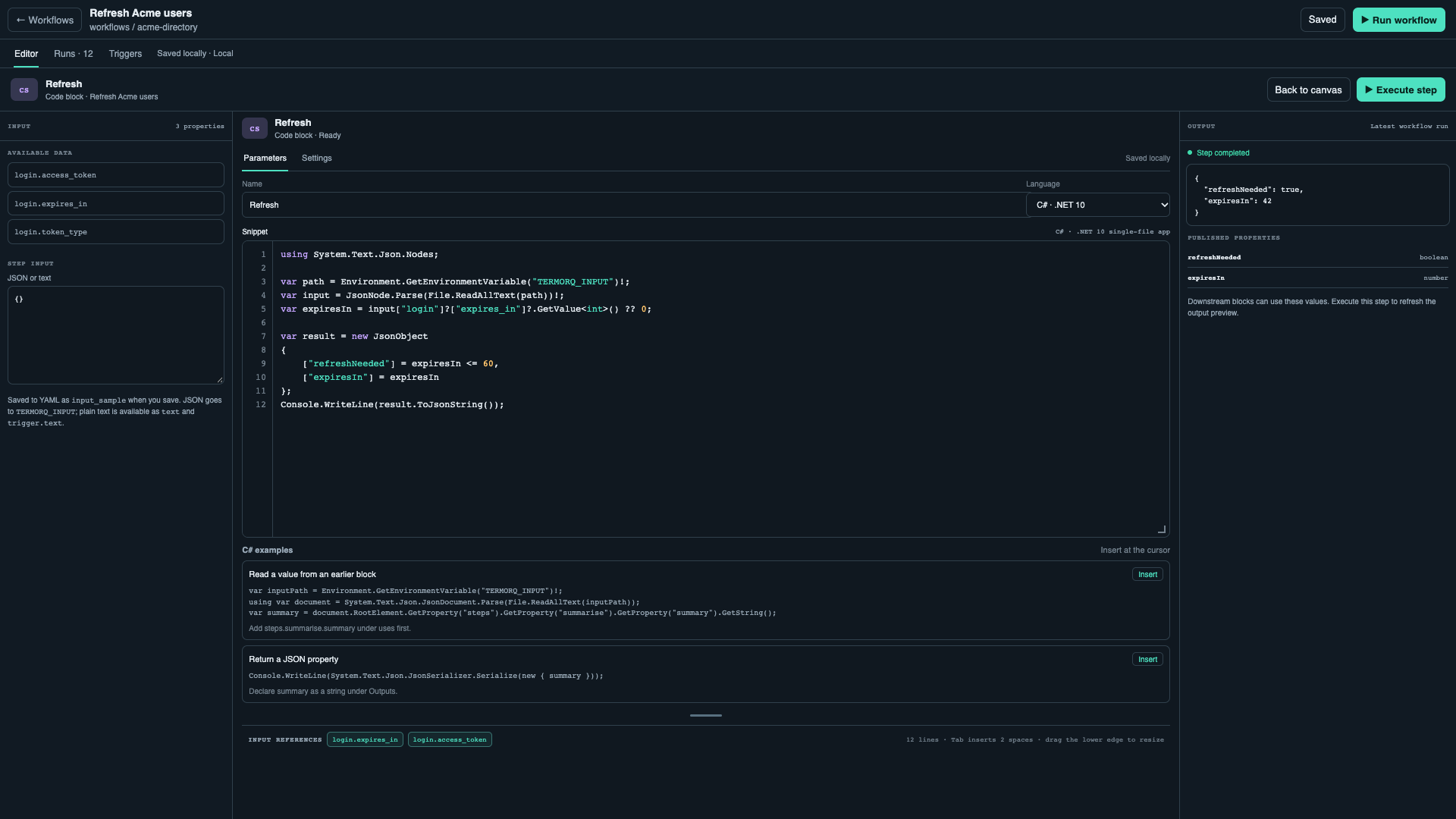
Remove appears when you point to a block or focus it with the keyboard. It asks Remove the <name> block? and names later blocks that read it. A loop names the blocks inside the frame, because they go too. Focus starts on Cancel. Esc is Cancel.
A decision is a dedicated React Flow node with draggable When and Else output handles. Its condition and both target selectors stay in the right properties inspector. The larger When editor offers properties from earlier blocks to insert. Examples: steps.lookup.total > 0, steps.lookup.names contains "Ada", or steps.lookup.names exists and steps.lookup.total >= 1. exists follows the property. The expression is not a shell or JavaScript.
A loop is a frame. For each suggests properties from earlier blocks and walks the selected array one item at a time. Add a block with the + inside the frame, or drag an existing block into it. The body can read loop.item (the name when the array contains strings), loop.index, and loop.count. While repeats while a comparison holds. Repeat runs a count. max starts at 20 and cannot pass 100. The frame shows 3 of 12 while you watch. Blocks after the frame see steps.<loop id>.results.
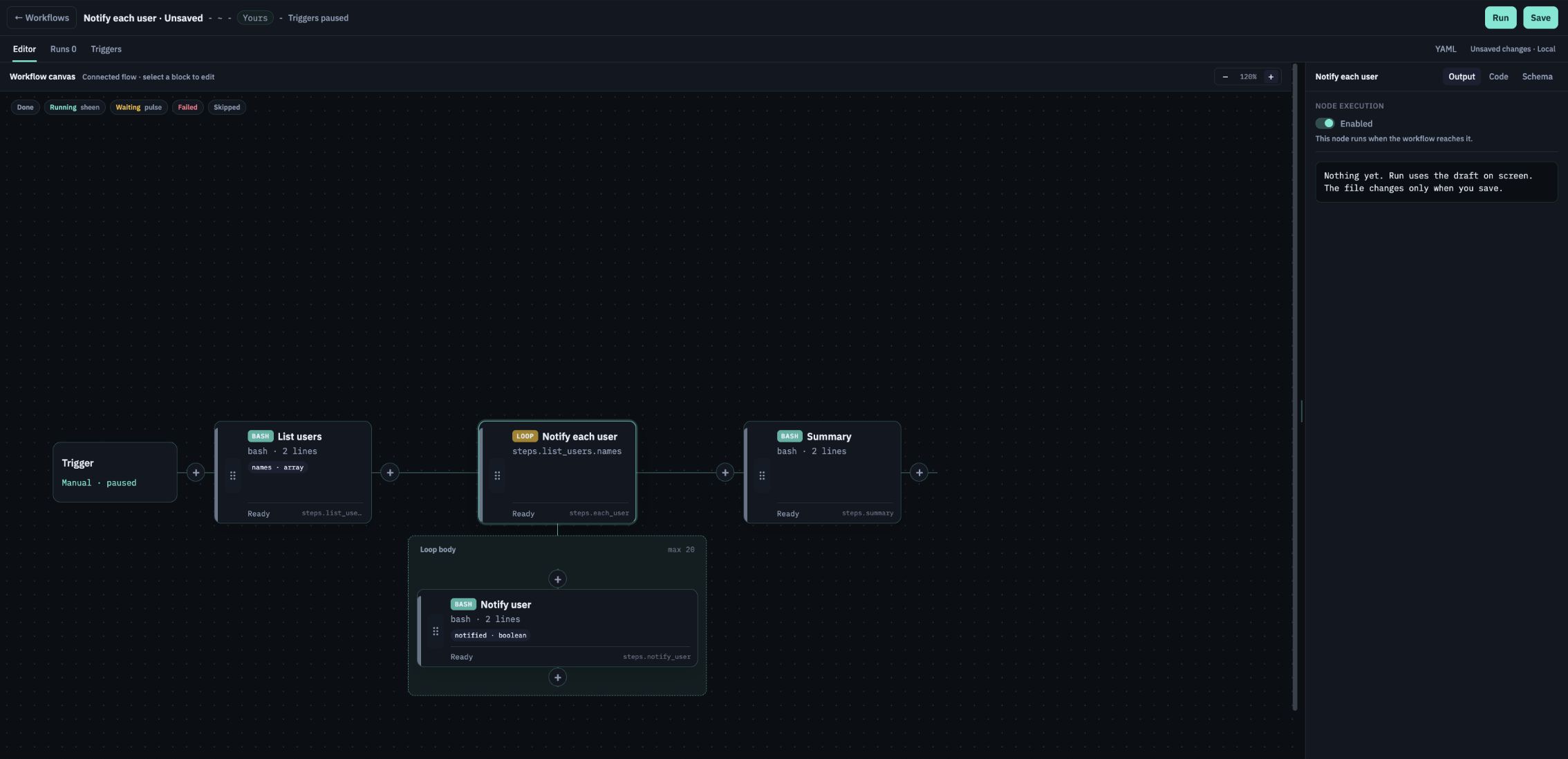
The loop body is a list of blocks nested under body. For example, this code block runs once for each item:
  - id: each_name
    kind: loop
    for_each: inputs.names
    body:
      - id: echo_name
        kind: code
        language: python
        uses: [loop.item]
        body: |
          import json, os
          with open(os.environ["TERMORQ_INPUT"], encoding="utf-8") as source:
              data = json.load(source)
          print(data["loop"]["item"])
Keep the child - id indented beneath body; a code block can be added or dragged into the loop frame in the editor.
Create the three common shapes
For a loop over names, add a code block before the loop. On Schema, add names with type array; have the last line of the code print JSON such as {"names":["Ada","Lin"]}. Add a loop after it and choose steps.<code id>.names in For each. Add Python inside the frame. Its starter snippet reads loop.item and publishes the current name for that pass. The loop runs once per array entry.
For a decision, add it after the block whose output you want to check. Choose a suggested property in When, finish the comparison (steps.lookup.total > 0), then select the Go to and Else block IDs.
For an AI step, add it after the block whose output should inform the model. The starter prompt includes those earlier properties. Its default summary output is available to a following block as steps.<AI id>.summary; the next code block’s starter snippet offers that property under uses.
Select an AI block and choose Open AI editor to test it in isolation. Enter JSON or plain text under Step input, then choose Execute step. The editor uses the saved model connection and prompt, and shows the model response, errors, published output, and any skills used with their provider pills. Copy output copies the result panel. JSON shaped as {"trigger":{"text":"Hello"}} is available as trigger.text; an object such as {"name":"Ada"} is available as inputs.name. Plain text is available as trigger.text and inputs.text. Reference those values in the prompt with {{ trigger.text }} or {{ inputs.name }}. The editor sample is stored in the block’s YAML input_sample property when you save; it does not become a default trigger payload and does not affect full workflow runs. An isolated AI step test does not start triggers or create a Runs entry.
While a block runs, an accent border and a sheen mark the card, and a dot travels toward the next block. Waiting pulses. Failed shakes once. prefers-reduced-motion: reduce keeps the colour and the label and drops the motion.
Pause run lets the current process finish and holds the next block. Stop ends the process tree. There is no second question on Stop, so a runaway block can be ended immediately.
What a block publishes
Each block can declare properties. The next block inserts steps.<id>.<property>. A property marked secret is drawn in the warn colour. The run record keeps the shape and stores a mask. Undeclared body keys are not offered.
Code snippets are not scanned for {{ }}. The properties you list under uses are written to TERMORQ_INPUT for that block, mode 0600, and deleted when the block ends. An AI prompt is a template. The chip is sent to the model and masked in the record.
The working directory of a code block is that run’s files/ folder. The workflow’s folder is the project path in TERMORQ_FOLDER.
YAML
YAML is the same workflow. Tab completes keys, legal values, and {{ }} properties. Esc closes the list and stays on the page. There is no Monaco editor.
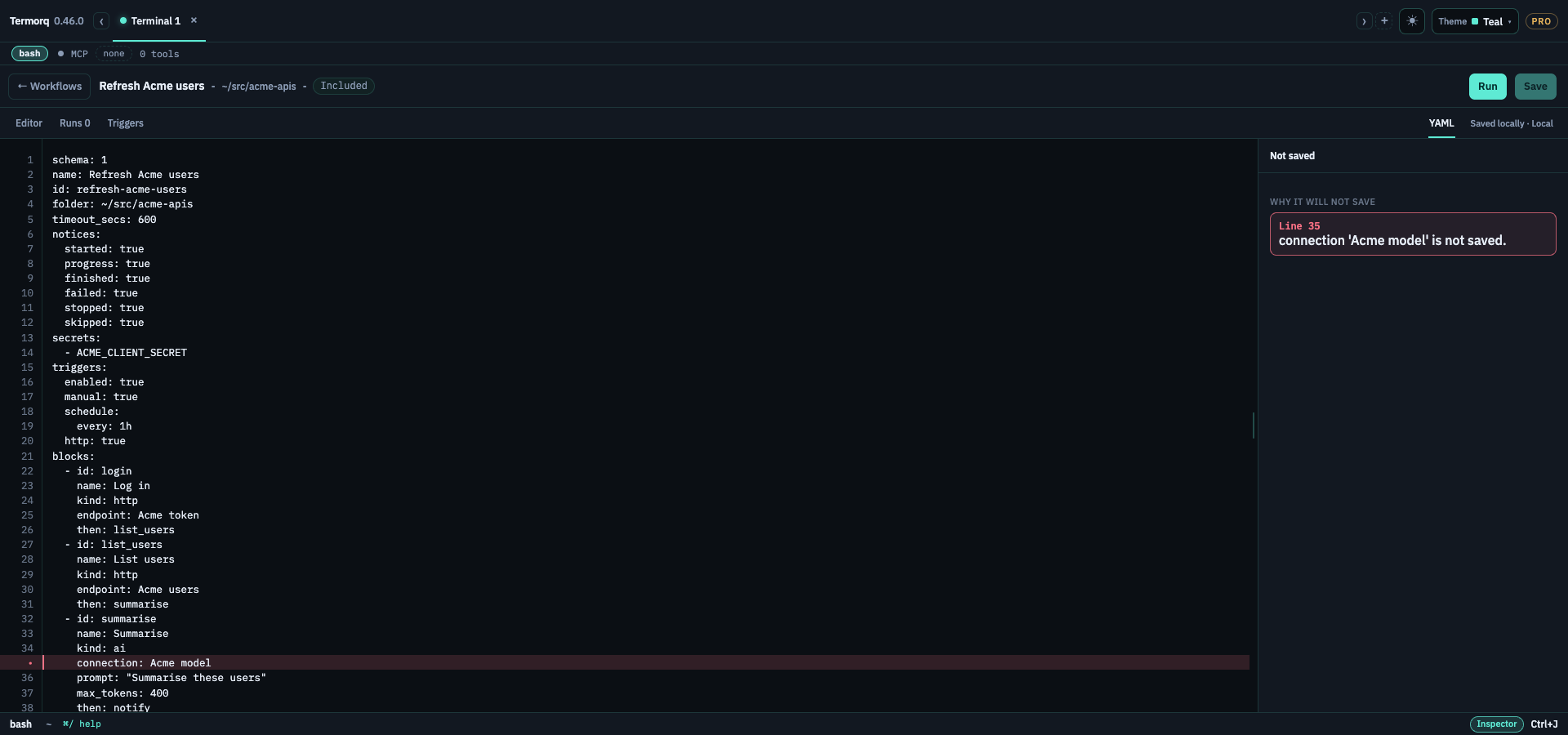
Save checks the draft first. A problem does not write the file, does not leave the page, and does not start a run. The panel is Not saved, with one line per reason, up to 20:
Line 19: property 'foo' is not recognised.
Line 23, column 13: malformed YAML.
termorq-cli workflow prints those same sentences. A workflow id is a letter, then letters, numbers, or hyphens. A block id is letters, numbers, or underscores. A file can hold 40 blocks. Nested loop bodies count.
Where the files are
| Place | What it is |
|---|---|
| Included | Read-only workflows shipped with the app |
| Yours | workflows/user/<id>.yml in the app data folder |
| Workspace | .ai-terminal/workflows/<id>.yml while that team workspace is open |
A user file that shares an included id replaces it and says so. Saving an included workflow writes your copy and leaves the shipped file unchanged. Delete on that copy restores the included workflow and removes that workflow’s saved run folders. The app never commits or pushes the team folder.
Import and export
Choose Export on a row to save one workflow as .yml. Check the workflows to include, or choose Select shown to select the rows matching the current search and source/trigger filters. Export selected saves the checked workflows as one versioned .aitwf bundle. A bundle can contain up to 50 workflows. After choosing where to save, turn on Encrypt the export with a password and set and confirm a password to encrypt the .aitwf file, or leave it off for an unprotected export. Protected exports use Argon2id key derivation and authenticated AES-256-GCM encryption; keep the password safe because it cannot be recovered. A single unprotected workflow is saved as readable .yml. Exports include definitions only; run history and local credentials are not included.
Choose Import workflows to select one or more .yml/.yaml files or a .aitwf bundle. Termorq prompts for the password when a selected .aitwf file is protected, then validates every workflow before saving the batch. Each imported workflow becomes a newly named copy with a new ID, and its automatic triggers start paused. Imported definitions are saved under Yours; review connections and secrets on this computer before enabling a trigger.
Each run is workflows/runs/<workflow id>/<run id>/: run.json, masked logs under blocks/, and files/ for anything the run creates. Code starts in files/.
Before a run starts, Termorq reads the Keychain-backed credentials referenced by statically named endpoints, MCP servers, models, and workflow secrets. macOS controls whether those reads need a password or approval prompt. Cancel run is available during credential preflight. On Runs, select a row to inspect every block captured when that run started. Drag the divider to give the history list or the selected run’s details more room. Executed blocks show the values passed through uses, any resolved request, recorded outputs, and their text or error. Copy input and Copy output copy the displayed values for that block; secrets remain masked. Blocks skipped by a decision or never reached after a failure remain visible as not run. Loop body blocks appear once per pass. Secret values are masked in the saved run details. Pause takes effect after the active block and holds the next block. Stop cancels the active process or request and ends the run.
An MCP block looks up the saved credentials, connects to that server, then calls its tool. If it fails, open @logs to see whether credential lookup or the network connection failed. macOS controls Keychain prompts; when access is already trusted, it can read without showing a dialog.
Unsaved edits
The title shows Unsaved until Save. Switching between Editor and YAML for the same workflow does not ask. Run uses the draft on screen and does not write the file.
Leaving does ask: Back, Esc, the shortcut, the jump list, or @flow opening another workflow. Focus starts on Stay. Esc is Stay. Discard drops the draft. Save checks, writes, then leaves. When the check fails, the navigation stops and the dialog lists the reasons.
Editing the rest of a paused run uses Apply. That updates the blocks that have not started. It does not write the workflow file.