Capture a session as a Workflow
Pro — Capturing a session as a Workflow is a Pro feature. Upgrade in the app.
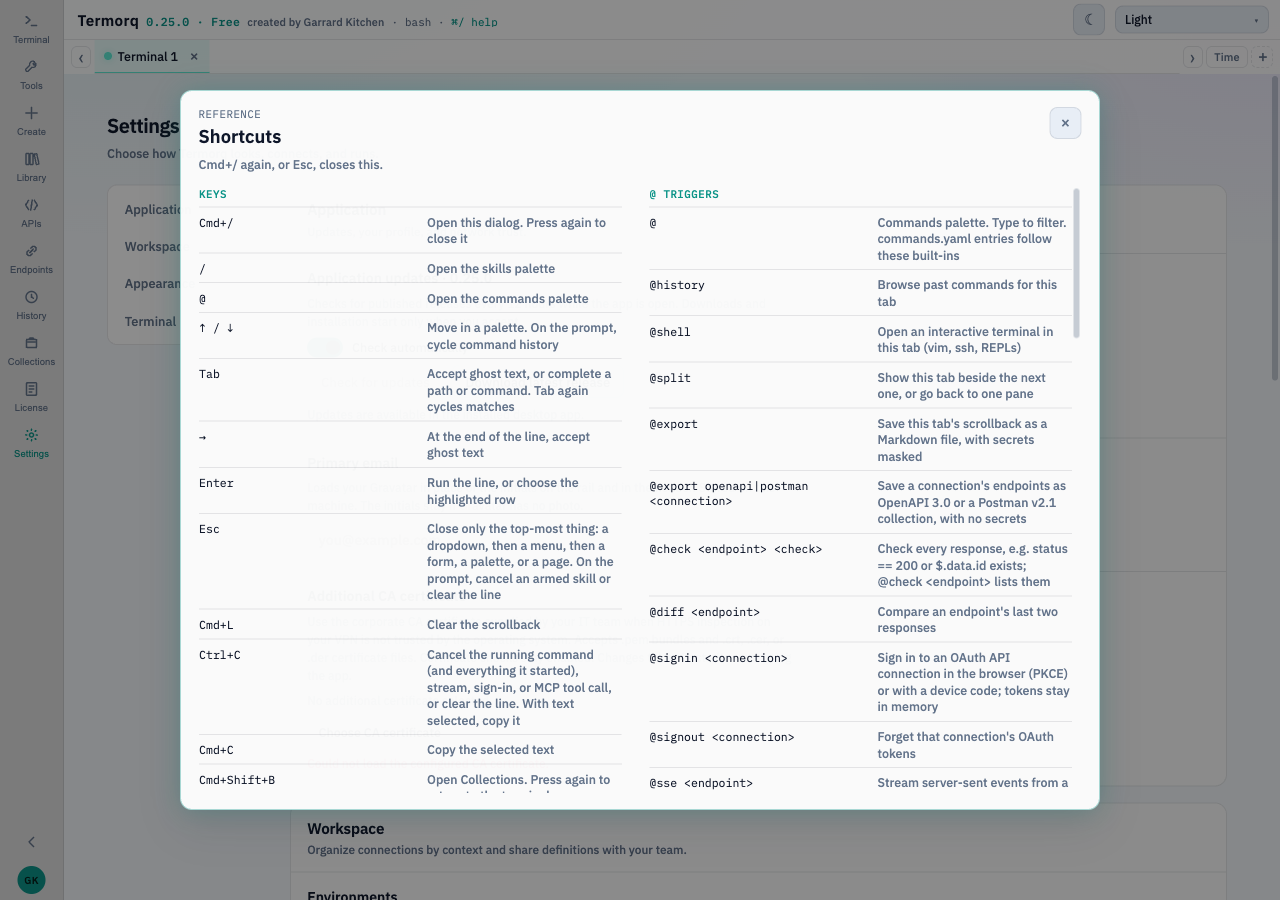
Use Capture session from the @ command list, type @capture, or press Ctrl+Alt+R (Ctrl+Shift+R is an alternate on Windows and Linux where AltGr occupies Ctrl+Alt; macOS uses Cmd+Option+R). Capture is Pro and applies to the current tab. Ask the AI in the prompt, run a shell command, call a saved endpoint, or call an MCP tool as usual. Start capture before the actions you want to include.
While capture is active, a pulsing Capturing pill in the footer shows how many actions have been recorded so far. Select the pill to see the action list and choose Finish and review or Keep capturing. The pill stays visible if you switch tabs.
From the Pro tray menu, choose Capture session to Workflow to start. While capture is active, the tray offers Stop capture and review Workflow and Discard session capture. Stopping asks for confirmation, then opens the draft for the tab that started the capture.
Press the shortcut or enter @capture again to open the same confirmation. It lists the captured actions, including shell commands, before you finish. The tray’s Stop capture and review Workflow action also asks first. Choose Finish and review to open an unsaved Workflow draft with triggers paused; the draft does not run automatically. If the list is empty, Finish capture closes the session without creating a blank Workflow. Review the steps, edit the workflow name and blocks, then save it from the Workflow editor.
For example, a saved API request made with @endpoint Find user --id 42 becomes an HTTP block. Its request values become named Workflow inputs; the value 42 is not saved as a default. When you press Run, enter the required values for that run. Those values are passed to the Workflow runner and are not written back to the YAML file.
AI prompts become AI blocks using the tab’s saved model connection; the prompt text becomes a required input instead of a YAML default. Previous chat context and model responses are not captured. Shell commands become Code blocks when they can be represented safely. POSIX shells, Git Bash, and WSL commands become Bash blocks; PowerShell stays PowerShell. Command Prompt commands run through cmd.exe inside a PowerShell block. Each generated shell block ends by printing a compact {"ok":true} object (or its PowerShell equivalent) to match the block’s declared ok output. These Bash and PowerShell output lines are also available as insertable examples in the code editor; see Code and block examples. Interactive commands are kept in the capture review list but omitted from the runnable draft. A command that changes the persistent shell’s directory or variables, or that reads one of those variables, stays in that list with a prerequisite and is left out of the runnable draft. The draft does not pretend that shell state was saved. Secret-looking prompts, commands, and API or MCP fields are scrubbed before they enter the in-memory capture buffer. A step with a secret-like value is left out of the runnable draft and listed for review; add a saved secret or re-enter the value in the editor. The capture is tab-scoped, stays in memory, and holds up to 200 actions.
Ctrl+Alt+Shift+R (Cmd+Option+Shift+R on macOS) cancels and discards the active capture. It does not save a draft. The existing @record command captures scrollback as an asciinema recording and remains a separate feature.
Related pages: Build a workflow, Workflow node types, Commands, and Keyboard shortcuts.