Forges
Settings → Forges connects Termorq to GitHub (github.com or GitHub Enterprise Server), GitLab (gitlab.com or a self-managed instance) or Azure DevOps (an organisation and, optionally, a project). Type @create forge at the prompt to open the same form, or search Settings for “forge”, “gitlab” or “token”.
- Pick the provider card.
- Leave Base URL blank for the cloud host, or enter your server, for example
https://git.example.com. For Azure DevOps, type the organisation or paste ahttps://dev.azure.com/contoso/ProjectURL into Organisation. - Paste a token. The form lists the scopes it needs:
- GitHub:
repo(read) andnotifications. Fine-grained tokens cannot read notifications. - GitLab:
read_api. - Azure DevOps: Code (Read), Build (Read) and Work Items (Read).
- GitHub:
- Select Test connection. It shows Connected as your login, or what is wrong, such as a missing scope.
- Select Save forge. A new connection saves only after a passing test.
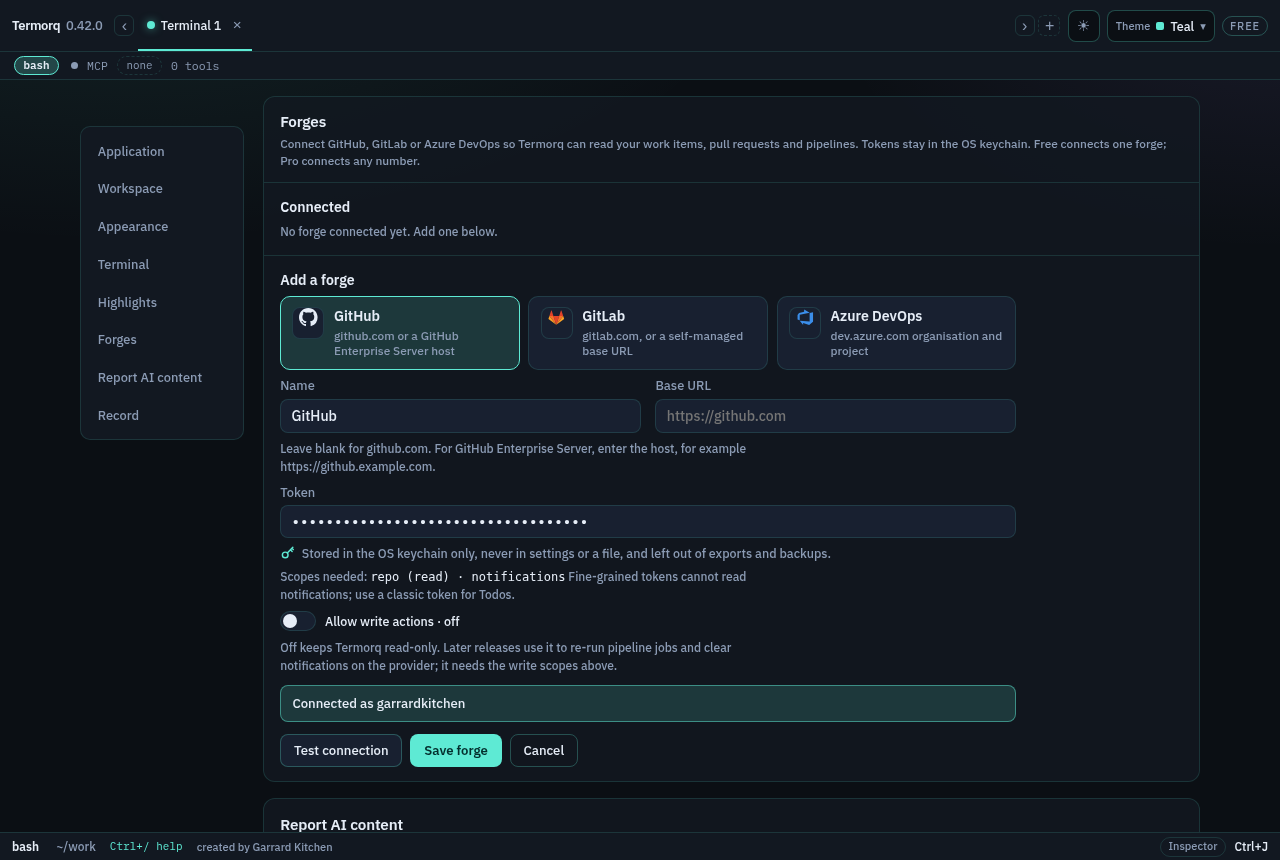
The token goes to the OS keychain only. It is never written to settings or a file and is left out of Back up everything; a restored connection asks for its token again.
Allow write actions is off by default, so Termorq stays read-only. Later releases use it to re-run pipeline jobs and mark notifications read on the provider, which needs write scopes.
The Connected list shows each forge with Edit and Disconnect. Editing saves on any change without a new test; leave the token blank to keep the stored one. Disconnect asks once more, then removes the connection and its keychain token.
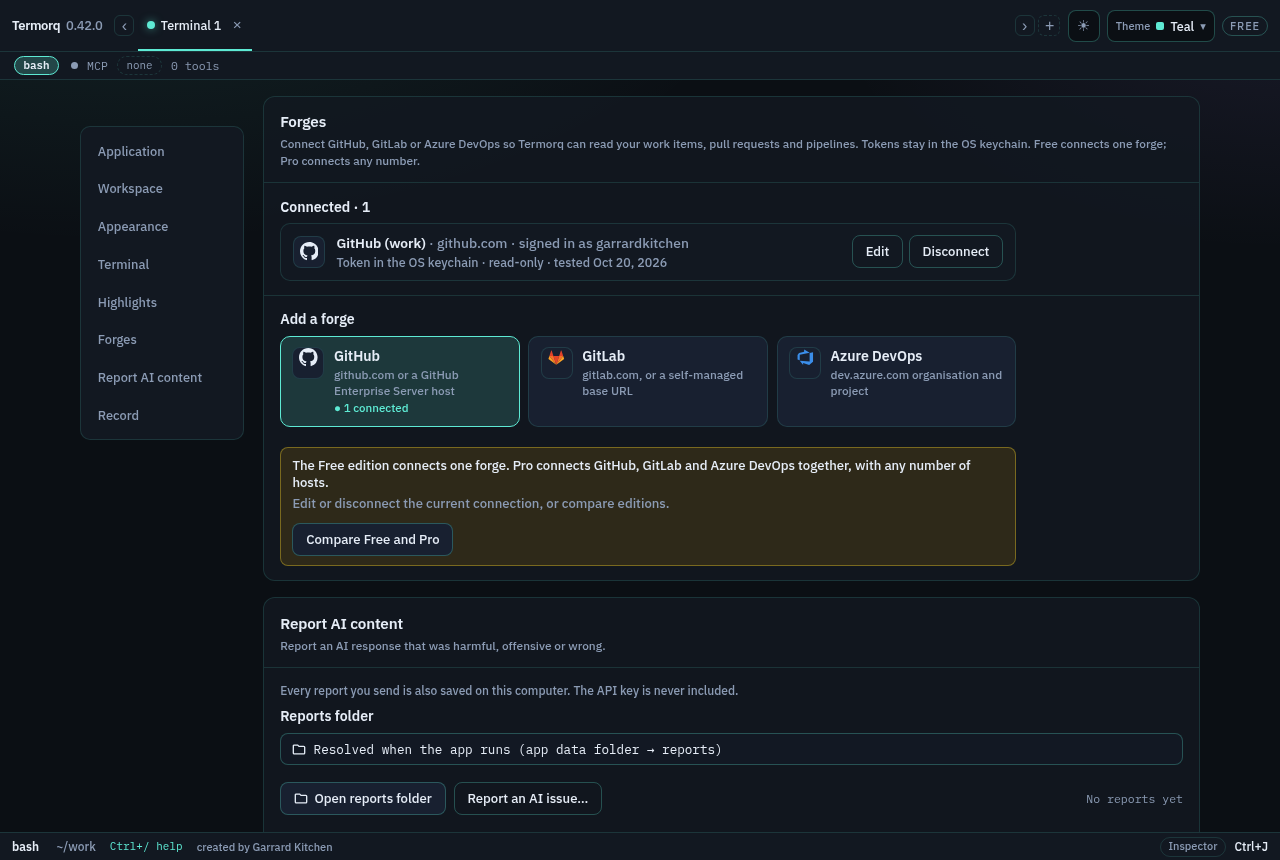
The Free edition connects one forge; gitlab.com and a self-managed GitLab count as two. Pro connects any number. See Free and Pro feature comparison.
Your work: @work
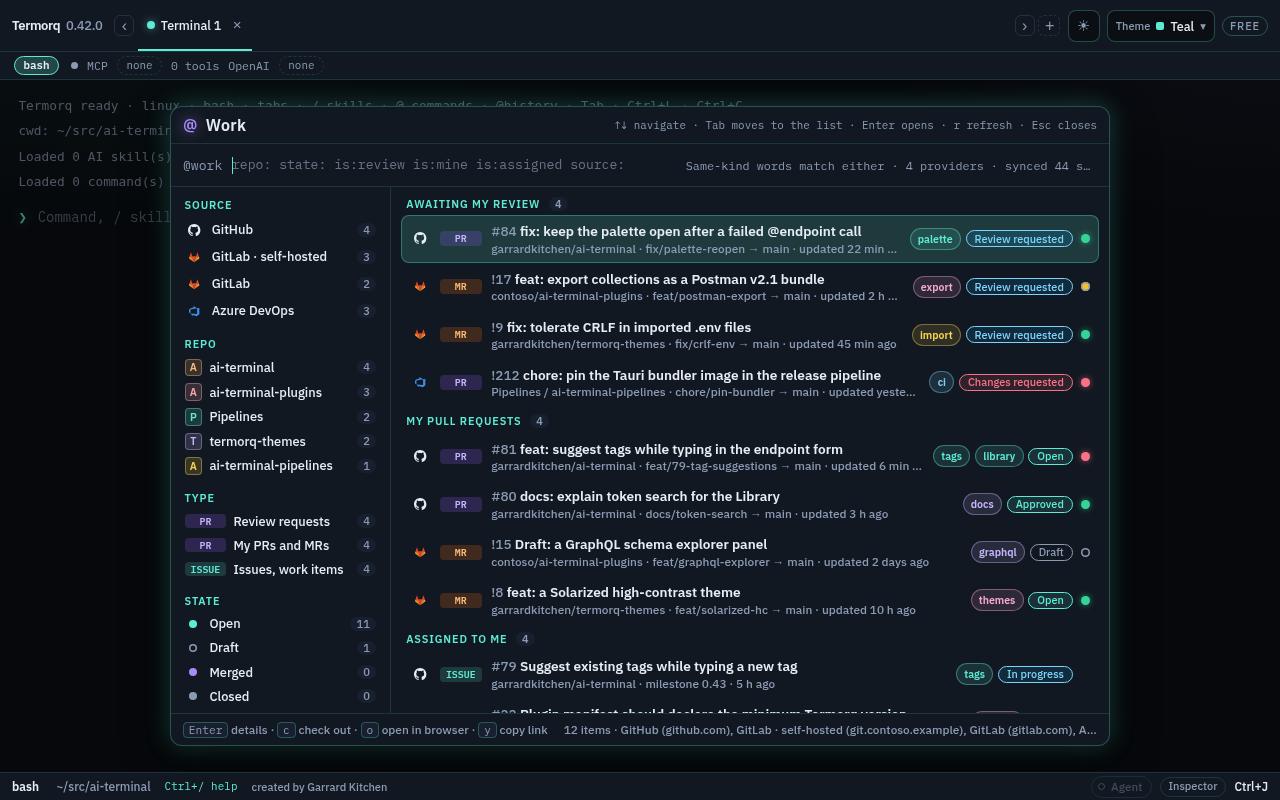
Type @work at the prompt, or pick work in the @ palette, to see your work from every connected forge in one list:
- Awaiting my review: pull requests and merge requests where you are a requested reviewer. On GitLab this also includes merge requests that are waiting for your approval, and on Azure DevOps it includes pull requests that list you as a reviewer.
- My pull requests: the open ones you created.
- Assigned to me: issues on GitHub and GitLab, and work items on Azure DevOps.
Each row shows the provider icon, the type (PR, MR, ISSUE, BUG, TASK…), the repository and branch, the labels as coloured tags, a state pill and a CI dot: green passed, red failed, amber running, hollow for no checks.
Type words after @work, or in the palette’s query box, to narrow the list:
| Word | Keeps |
|---|---|
repo:ai-terminal | items whose repository name contains the text |
state:open | open, draft, merged or closed; the Azure DevOps words active, completed and abandoned also work |
type:pr, type:issue | pull and merge requests, or issues and work items |
is:review, is:mine, is:assigned | one group |
source:github, source:gitlab, source:ado | every connection of that provider |
source:gitlab-2, source:"GitLab · self-hosted" | one connection, by its word or its name |
Any other text matches the title, number, branch and labels. As with Library token search, repeating a word of the same kind matches either value (is:mine is:review shows both groups), and different kinds must all match (repo:ai-terminal is:mine). Selecting a facet on the left adds or removes its word.
The Source facet lists every connection separately, with its own count, so you can pick a single connection or several of them. For example, a self-hosted GitLab and gitlab.com are two separate entries, and the list never folds connections into “+1”. A provider with one connection uses the provider word (source:gitlab). When a provider has more than one connection, each one gets a word made from its name (source:gitlab-self-hosted, source:gitlab-2). Hover over a facet to see its word and host. Two connections with the same name also show their host. The provider word still selects all of that provider’s connections. If you clear one of them in the facet list, the provider word is replaced with the words for the others.
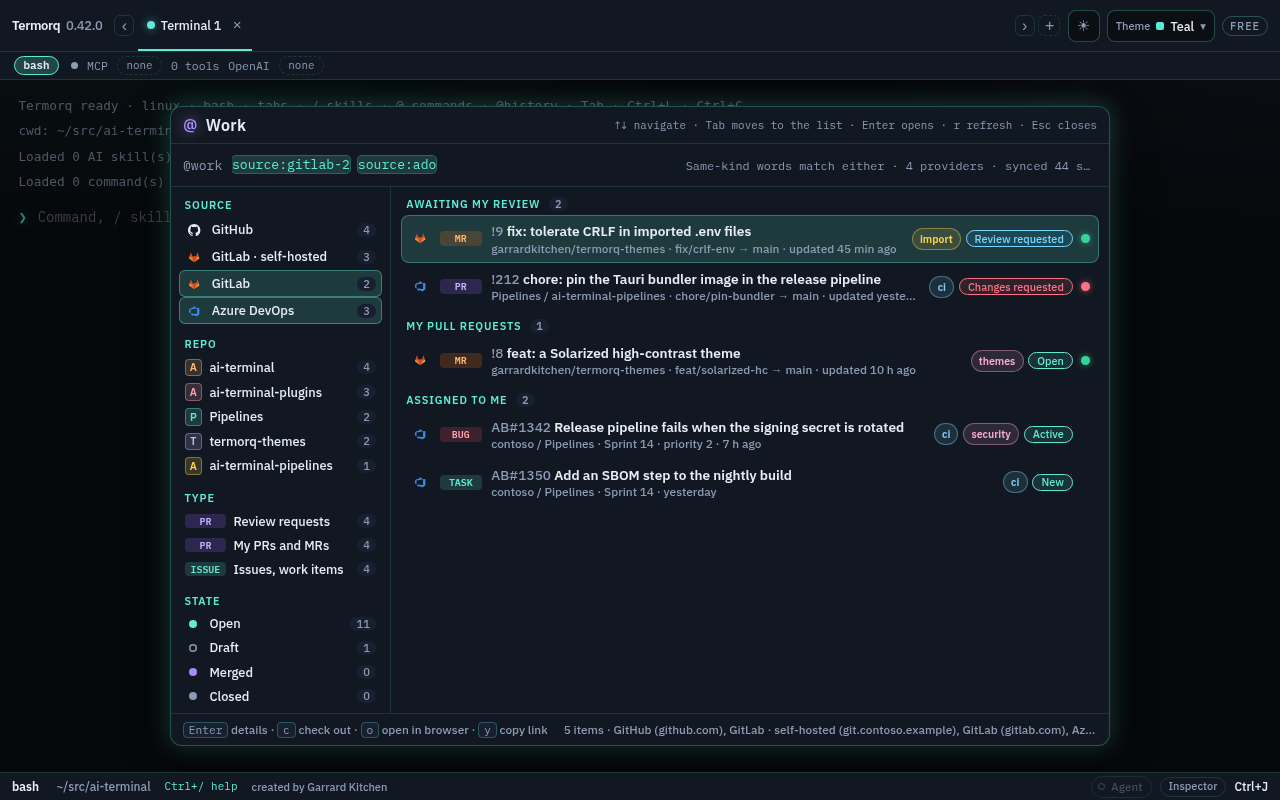
The palette opens straight away with the last list it fetched and refreshes in the background. Each forge is queried at the same time with its own time limit, so a slow or failing forge shows its own error row and the others still list. Press r to refresh.
Keys: arrows move, Tab moves between the query box and the list, Enter opens a pull request in the Inspector (or an issue in your browser), c checks out the branch, o opens in the browser, y copies the link and Esc closes the palette.
Pull request detail
Opening a pull request shows it in the Inspector dock: its source and target branches, commits and linked issues, each reviewer and their state, a checks or pipeline summary with every job, and the changed files with lines added and removed, followed by the selected file’s diff. Azure DevOps does not report line counts, so its file list shows each file’s change type instead.
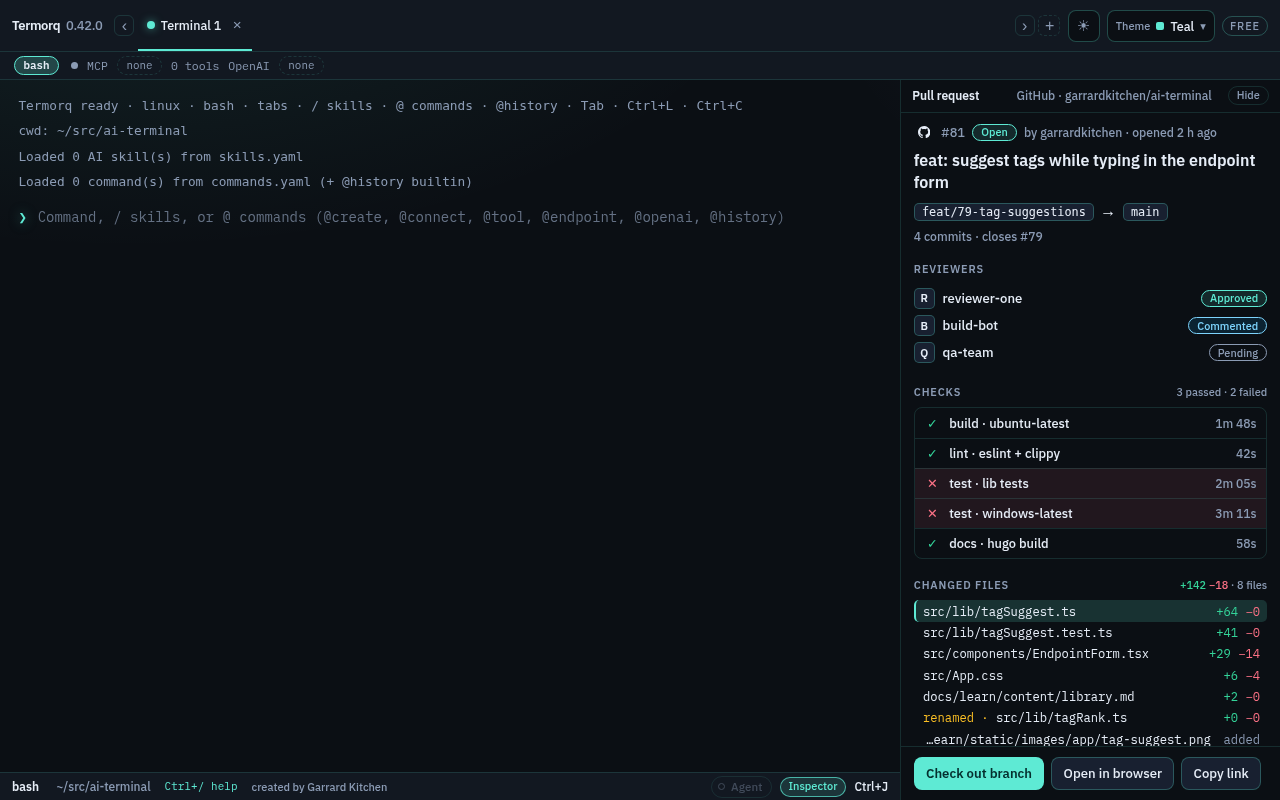
Changed files and diffs
The first file is selected when the pane opens. Click another file to show its diff, or use the keyboard in the file list: ↑/↓ (or k/j), Page Up/Page Down, Home and End. Each file’s diff loads in the background the first time you select it, and Loading diff… shows while it does. Termorq keeps the diff for when you come back to that file, and the rest of the app stays usable while it loads.
- Renamed files show
renamed ·in the list and old → new in the diff header. If the content did not change, the diff says so. - Binary files, and files the provider sends no text diff for, show a short note instead of the diff.
- Large files: if the provider will not send the diff, you get a note with Open in browser. Long diffs show the first 3,000 lines, with a note giving the full count.
- Azure DevOps does not send line diffs, so its files show a note pointing to the pull request in the browser.
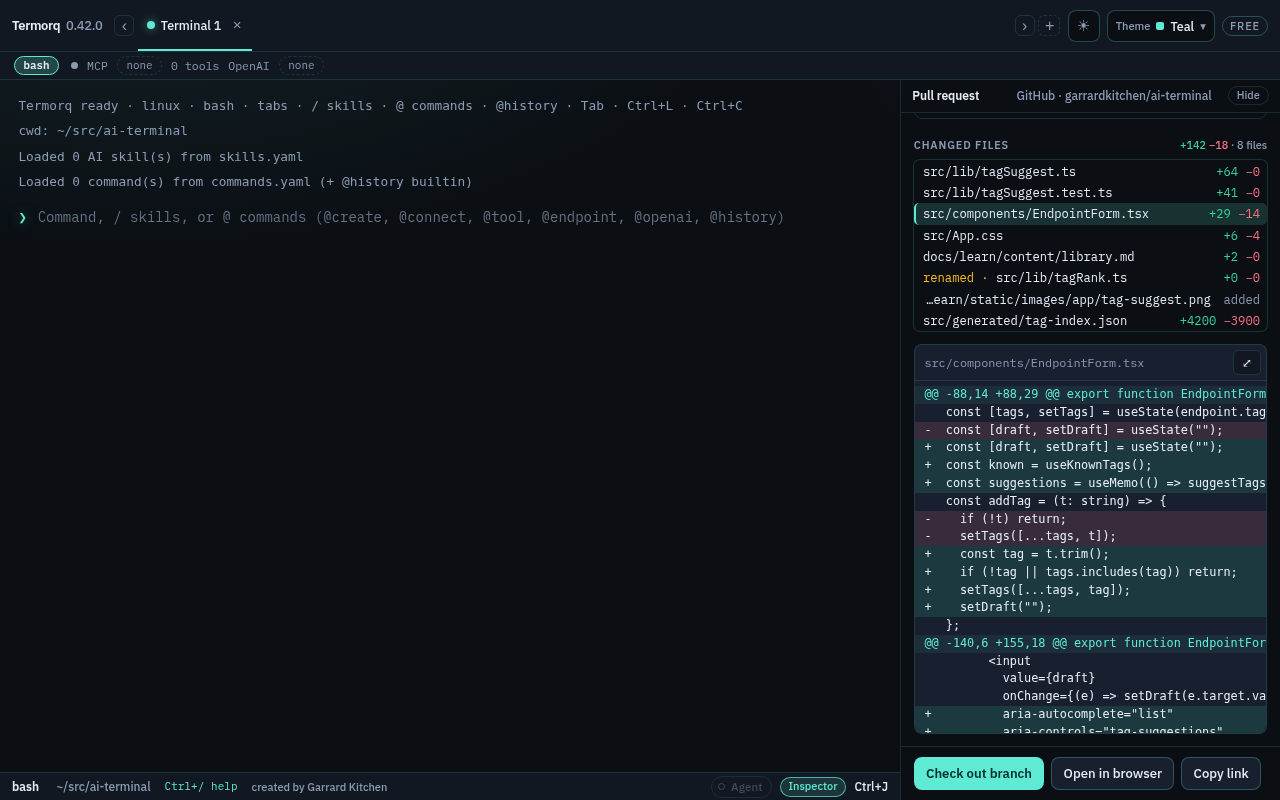
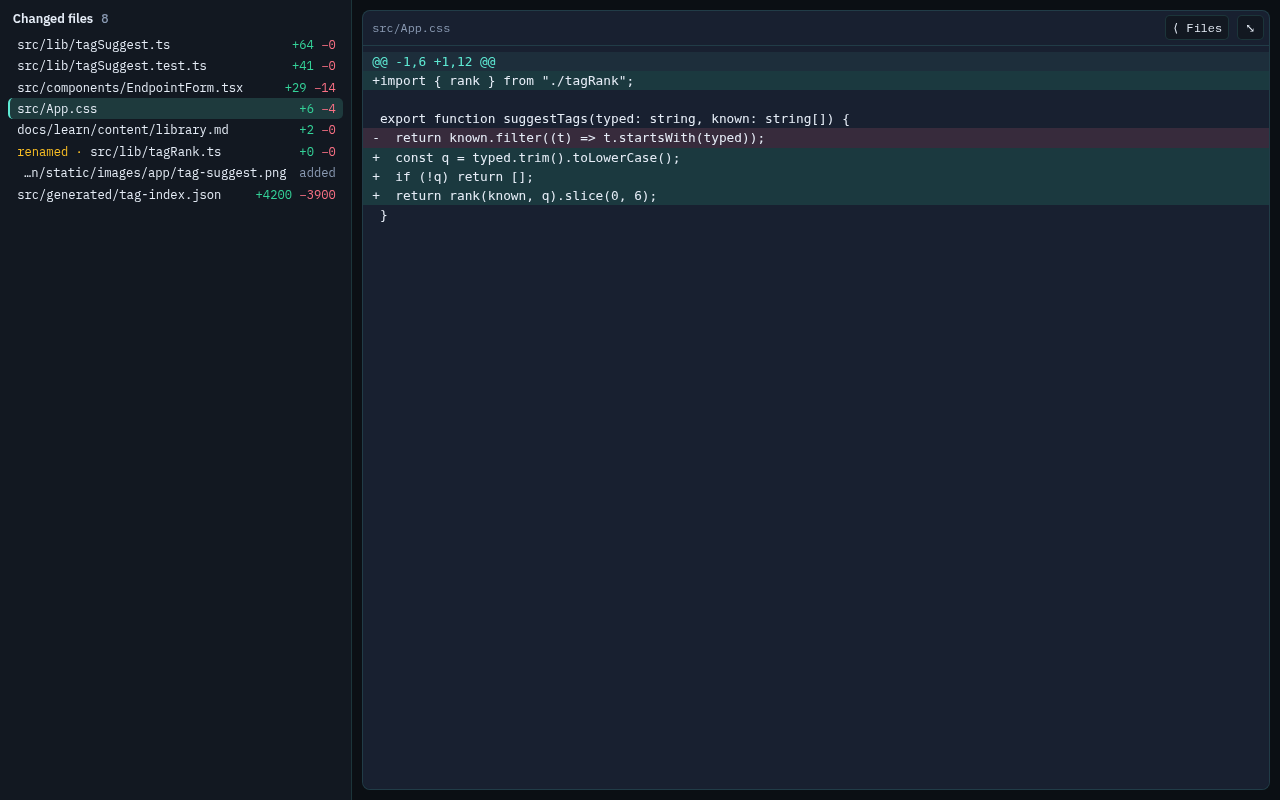
Expand (the ⤢ button at the top right of the diff, labelled Expand diff to the full window) shows the diff across the whole window, with the file list on the left. ⟨ Files hides the list and ☰ Files shows it again. The selection carries over, and the arrow keys still work in the list. Esc or the ⤡ button restores the pane, still on the same file.
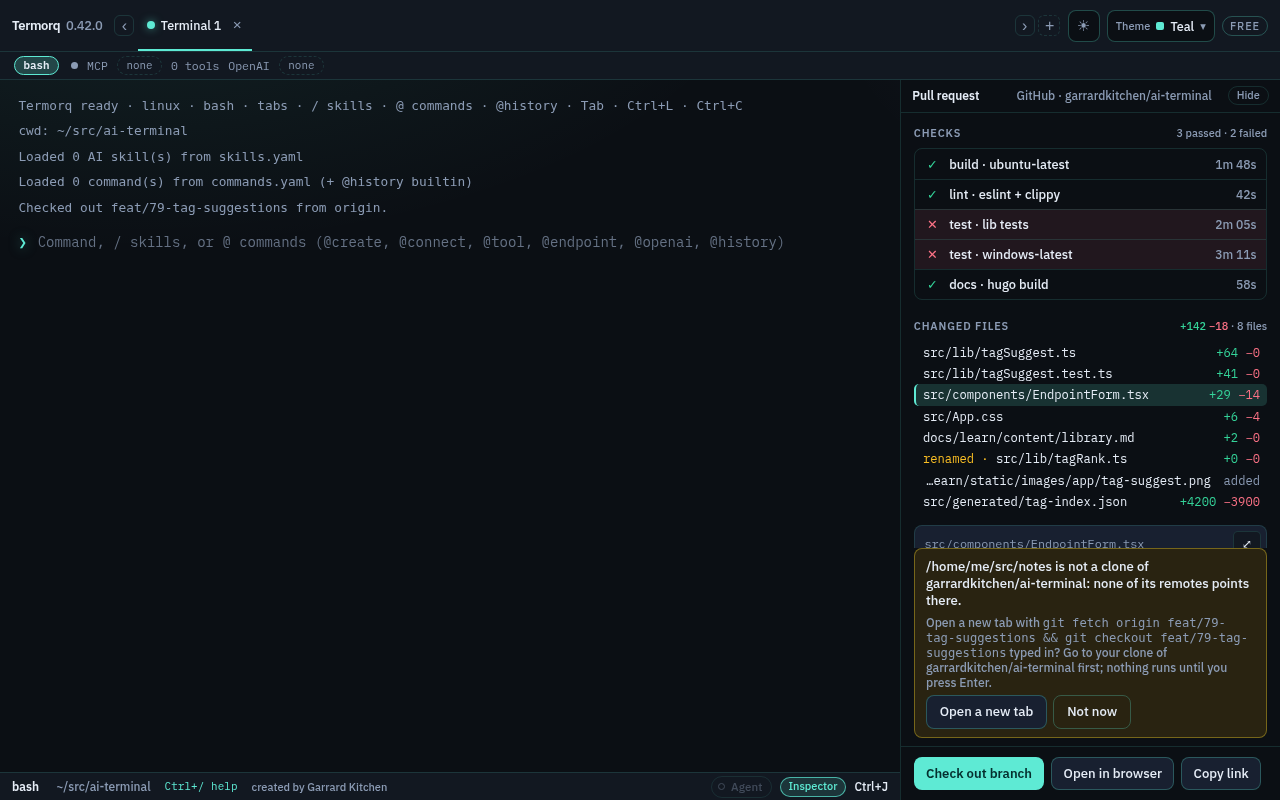
- Check out branch runs
git fetchandgit checkoutin the active tab’s folder when that folder is a clone of the same repository. It creates a local tracking branch, or fast-forwards an existing one. Termorq never commits, stashes or resets. It stops if you have uncommitted changes, if the pull request comes from a fork, or if the fetch or checkout fails. - If the tab is in a different folder, Termorq offers to open a new tab with the
git fetch … && git checkout …command typed in. Change to your clone first; nothing runs until you press Enter. - Open in browser and Copy link use the pull request’s web address.
The Free edition lists work from your first forge connection. Pro lists every connection together.