CI status, logs and re-run
When the current tab’s folder is a clone of a repository on one of your forge connections, the status strip shows a CI chip for the branch you are on: GitHub Actions runs, GitLab pipelines or Azure DevOps builds. It works on any branch, not only the ones your watchers cover.
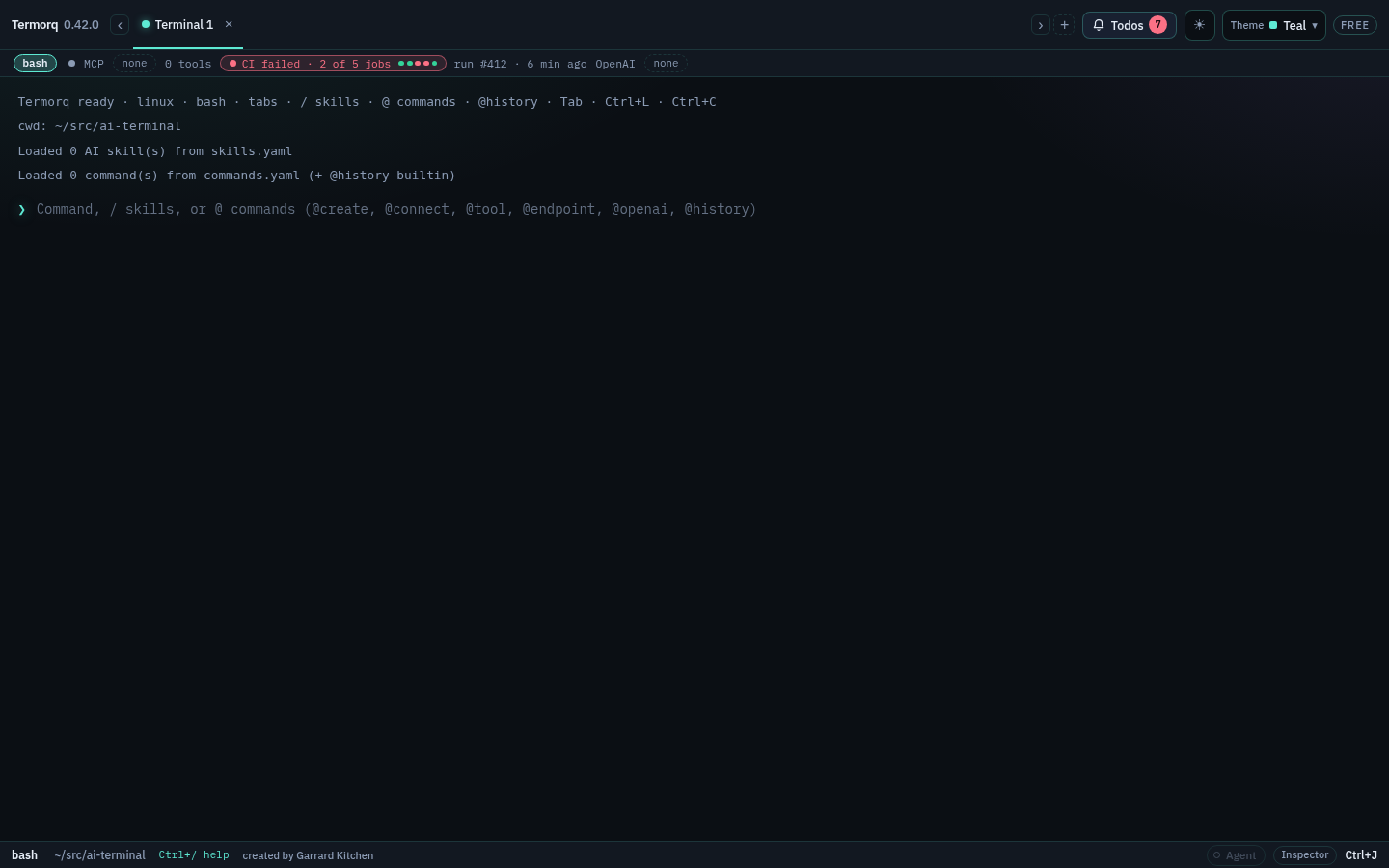
- The chip reads CI passed · 5 of 5, CI failed · 2 of 5 jobs, CI running · 3 of 5, CI queued, No CI runs or CI unavailable, with one dot per job and the run’s age beside it. Hover it for the workflow, the connection and how often it checks.
- It picks the latest commit’s run on the branch: a failed run first, then a running one, then the newest.
- There is no chip outside a clone, on a detached HEAD, or when the remote matches no saved connection. Termorq finds the connection from the branch’s remote (then
origin): GitHub and GitHub Enterprise hosts, GitLab with its path, and Azure DevOpsdev.azure.com, SSH andvisualstudio.comremotes in your organization.
How often it checks
The chip uses the Pipeline failed watcher’s frequency (the watcher, then the provider, then the global setting in Settings → Forges → Watchers; 5 minutes by default). While a run is in progress it checks every minute. It never checks more often than the forge’s X-Poll-Interval, and it slows down in the background and on battery, like the watchers. Requests are conditional, so an unchanged run costs nothing against your rate limit. Each check has a 45-second budget and never blocks the app; errors back off with jitter. Manual frequency means the chip checks only when you switch folders or press Refresh.
The run popover
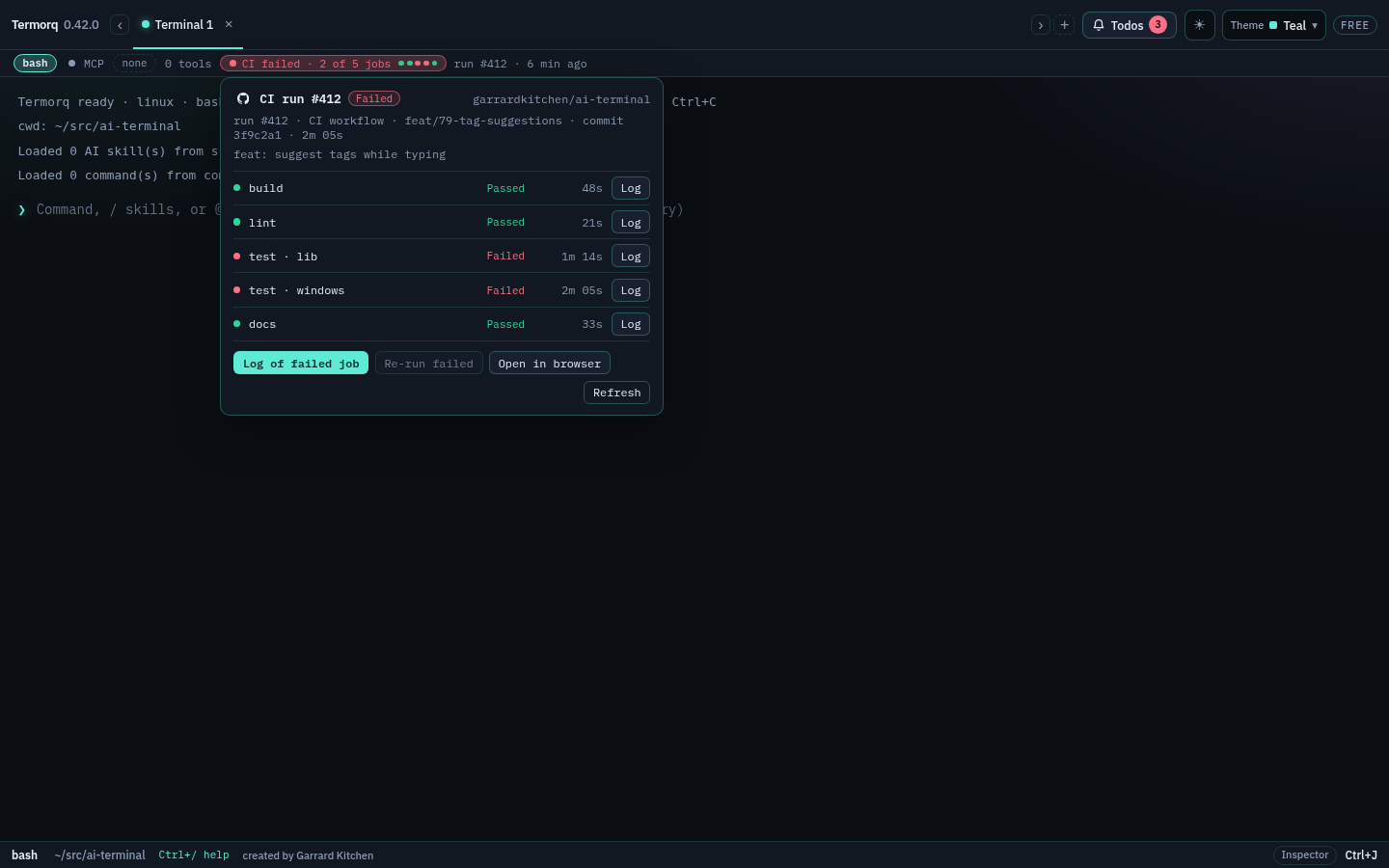
Click the chip to see the run’s jobs, their states and durations.
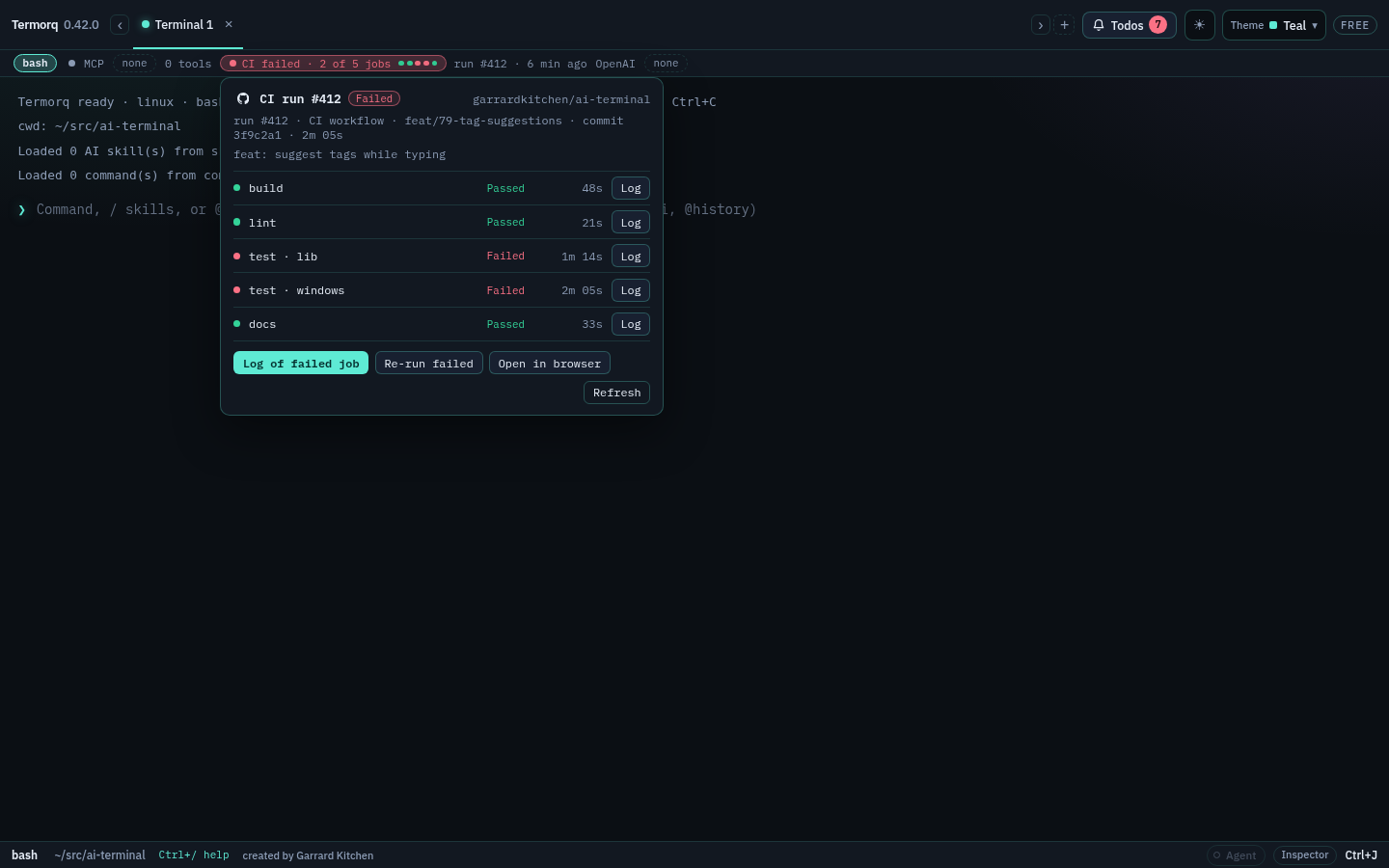
- Log on a row, or Log of failed job, opens that job’s log in a new tab.
- Re-run failed re-runs the failed jobs (see below).
- Open in browser opens the run on the forge. Refresh checks now.
Job logs
A job’s log opens in a new, read-only tab named after the job (CI · test · lib). It streams in pages as it downloads, so long logs show up straight away, and the app stays responsive.
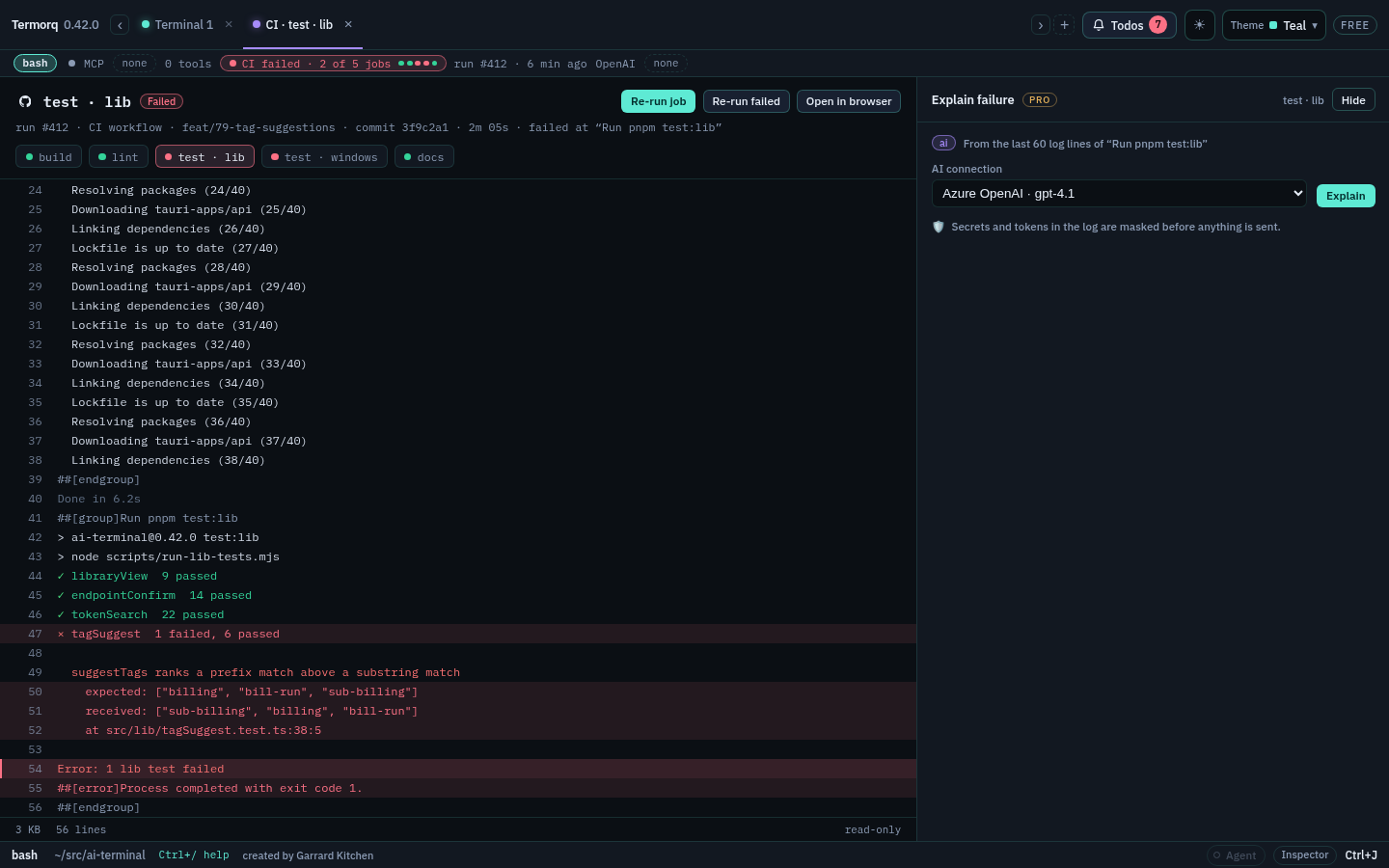
- ANSI colours are kept. GitHub’s per-line timestamps are hidden. Failed tests, stack lines and errors are tinted, and the first error is marked.
- The job chips switch to another job in the same run.
- While a job runs, the tab follows it and reloads the log every 20 seconds.
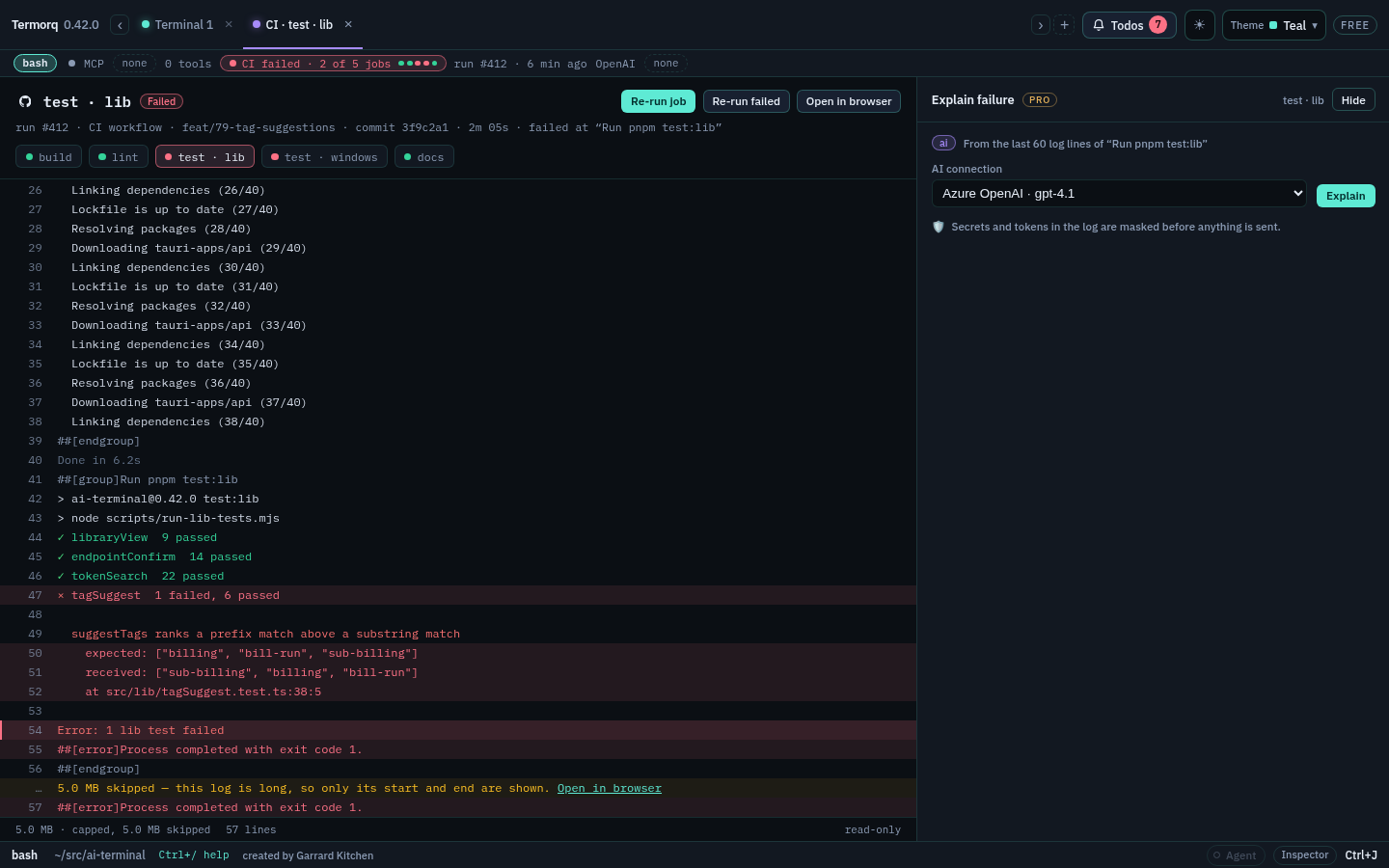
- Logs are capped at 4 MB. Past that, Termorq keeps the start and the last 256 KB, and shows a marker with the number of bytes skipped and Open in browser for the full log.
- CI log tabs are not saved: they close when you quit.
Re-run
Re-run failed re-runs a run’s failed jobs; Re-run job in a log tab re-runs just that job. Termorq always asks first, and says what it will re-run and where.
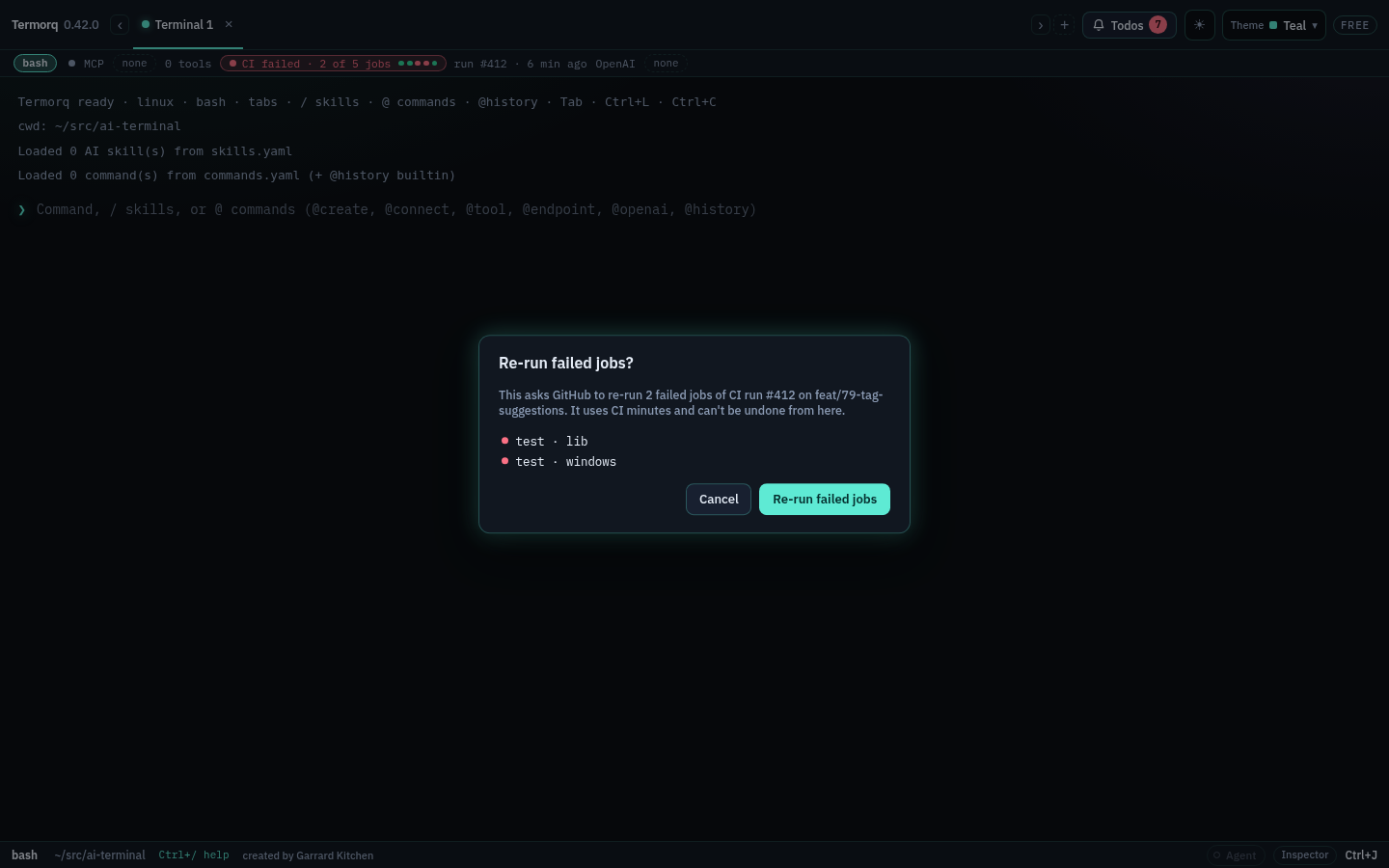
- Re-run needs Allow write actions on the forge connection (Settings → Forges). Without it the buttons are disabled, and their tooltip says why. The backend checks this again before it sends anything.
- GitHub re-runs the failed jobs, or one job. GitLab retries the pipeline’s failed jobs, or one job. Azure DevOps re-runs a build’s failed jobs together, so it has no single-job re-run.
- A run that is still going can’t be re-run until it finishes.
Explain failure (Pro)
On a failed job’s log tab, Explain failure sends the job, its failed step and the last 60 log lines to an AI connection you choose, and shows the likely cause, a suggested fix and, when it helps, one command to check the fix locally.
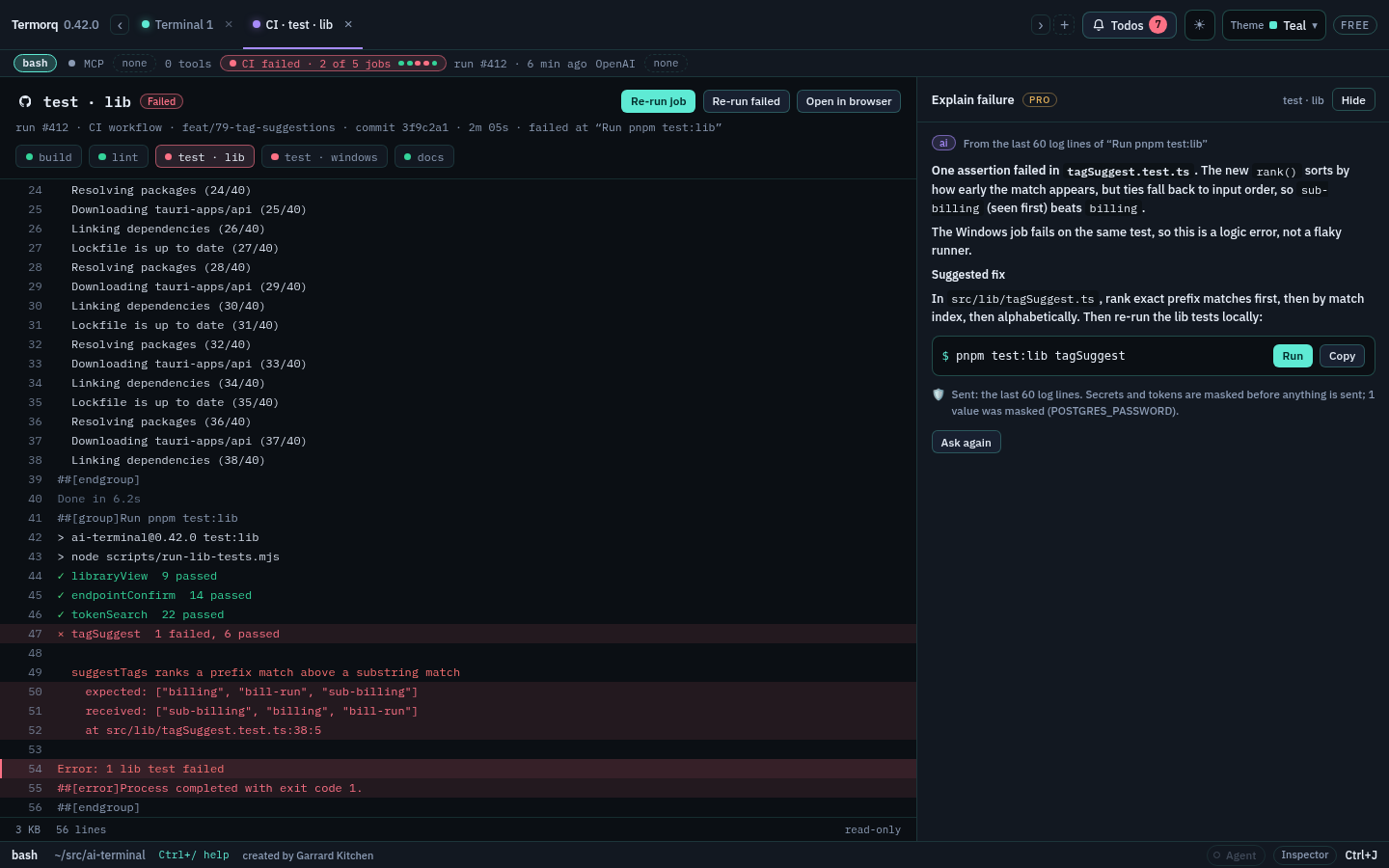
- Termorq builds what it sends from the log it downloaded itself. Secrets are masked before anything is sent: your forge token,
*_TOKEN,*_PASSWORD,*_SECRETand*_API_KEYvalues, authorization headers, passwords in URLs, private keys and long random keys. The panel says how many values were masked and what they were (for example POSTGRES_PASSWORD), never the values. - Run opens a new tab with the command in the prompt; nothing runs until you press Enter. Copy copies it.
- The log goes only to the AI connection you pick, never to Termorq.
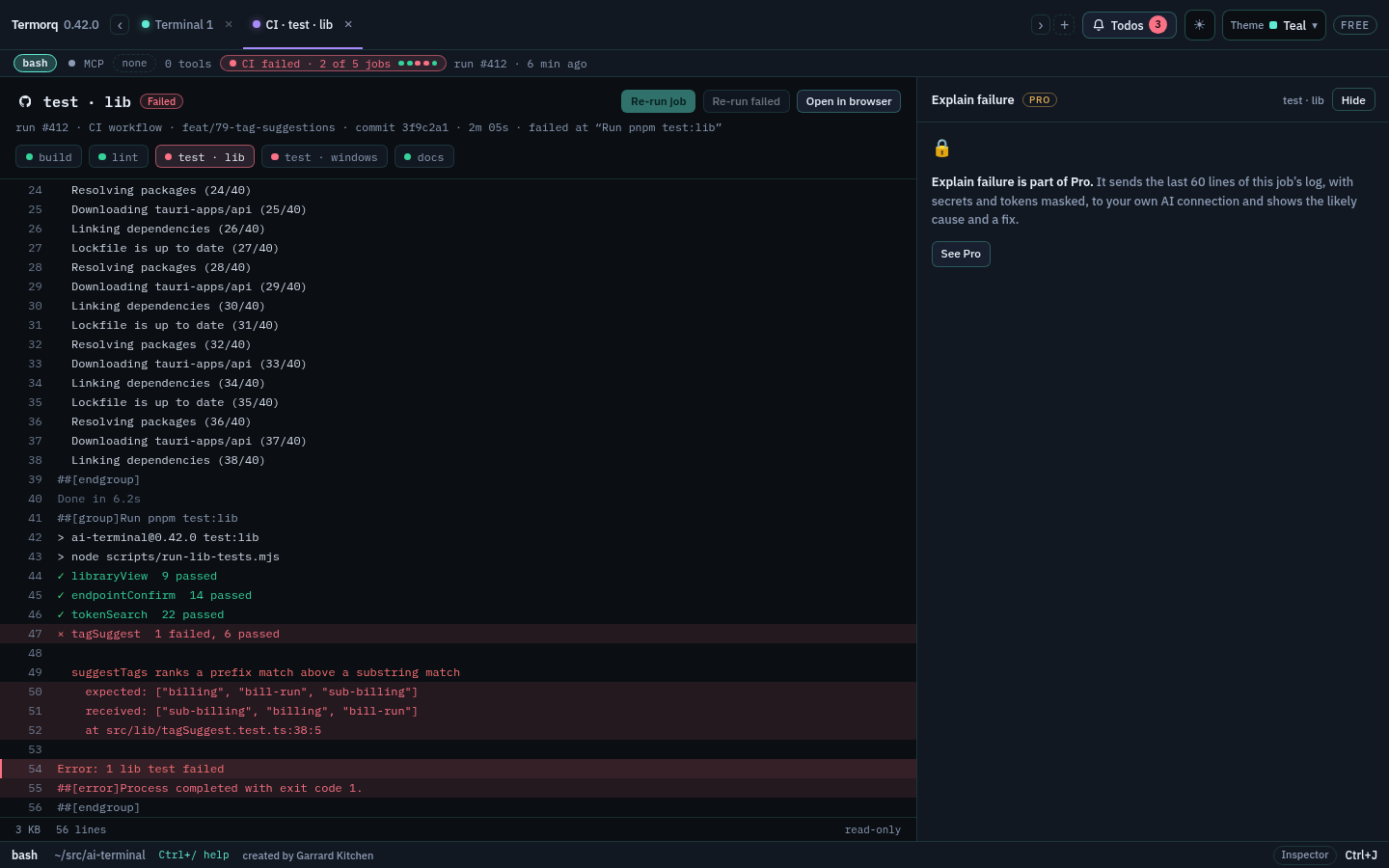
On Free, the panel shows Explain failure locked with the PRO badge.
From Todos
Failed pipeline rows on the Todos page have Log, which opens the failed job’s log in a new tab, and Re-run, which re-runs the failed jobs after the same confirmation. Re-run is disabled, with the reason in its tooltip, when the connection does not allow write actions.
Editions
The CI chip, logs and re-run are in every edition (Free covers its one forge connection). Explain failure is Pro. See Editions.
To branch from an issue or work item, see Start work from a ticket.